ESP32-S3 AI Camera Kit: First Setup, Voice Interrupt and Camera Test
Set up Wi-Fi, bind the device, test voice interruption and camera recognition, and find firmware support for DS41960.
On this page
Identify your kit before powering it onConnect to 2.4 GHz Wi-FiBind the device and test a first conversationTest voice interruption and the cameraVoice interruptionCamera and object recognitionFirmware and recoveryTroubleshootingProduct and documentation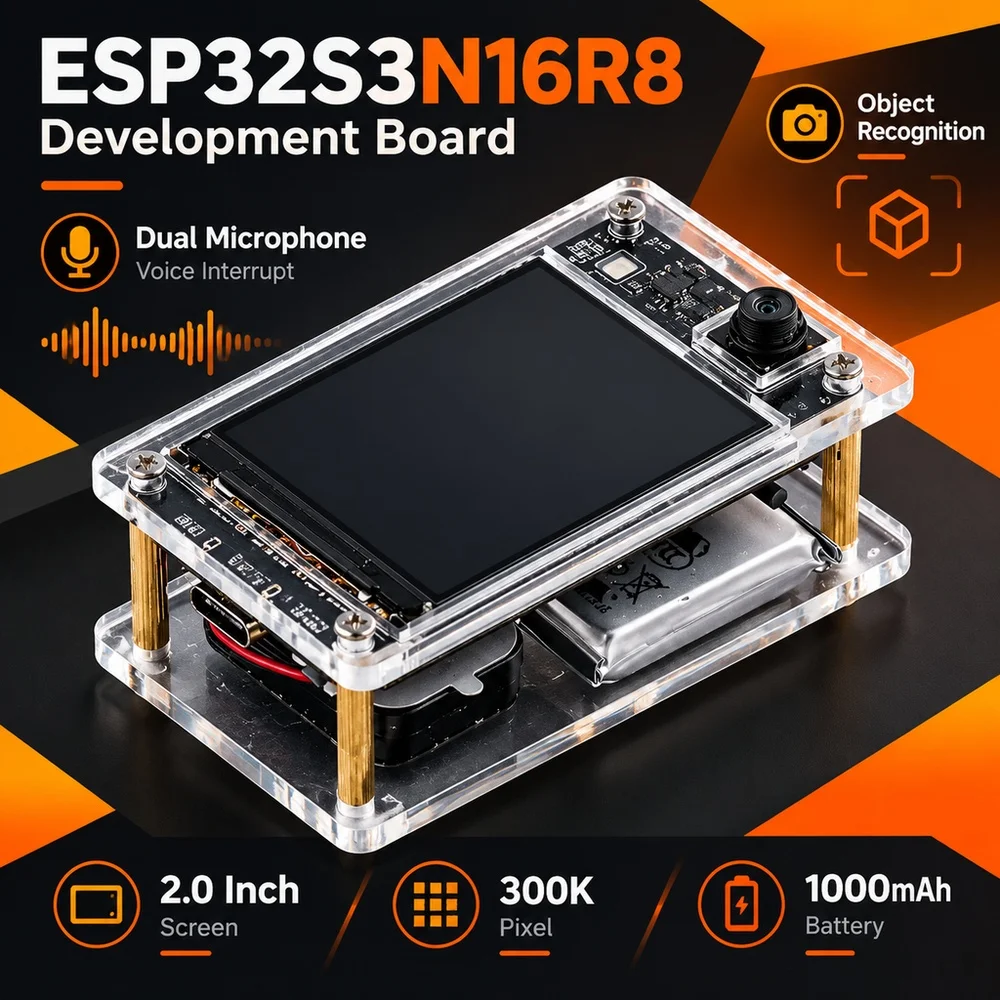
Identify your kit before powering it on
This guide covers the DS41960 ESP32-S3 AI Camera Kit, with a 2-inch screen, camera and dual microphones. DS41960A01 is the clear enclosure option and DS41960A02 is the black enclosure option. The supplier identifies the Wi-Fi firmware target as Zhengchen Tech AI Camera (zhengchen-cam). Check your hardware revision and current firmware before using any recovery file.
Check your order for the battery and power accessories supplied with your kit. The supplier specifies a charger with 5 V output and warns against operating the kit while charging. Keep the device dry and ventilated, and use it at 45 °C or below. The supplier's flashing guide specifies that a battery must be connected during flashing. Ask support for the correct power setup if your unit arrived without a battery or repeatedly restarts on USB.
Connect to 2.4 GHz Wi-Fi
- Turn the kit on using its power control. If the screen reports an existing connection, continue to device binding or the voice test.
- On a phone or computer, join the setup hotspot shown by the device. The supplier manual shows a name beginning with
Xiaozhi-. - Wait for the setup page. If it does not open automatically, stay connected to the device hotspot and open
http://192.168.4.1in a browser. - Select your 2.4 GHz Wi-Fi network, enter its password and submit. Wait for the device to join the network and restart. If using an iPhone hotspot for setup, enable Maximize Compatibility.
If you need to change networks and the setup hotspot is unavailable, check the instructions for your installed firmware or ask support. The supplier manual gives different button descriptions for restarting Wi-Fi setup.
Bind the device and test a first conversation
- If the device displays or reads out a binding code, open the service shown by the firmware. The supplier's V3.0 manual documents binding through the Xiaozhi console.
- Sign in, choose the option to add a device and enter the current code. If it is already bound, use the original account to unbind it or contact support.
- After the device is online and ready, follow its listening prompt and ask a short question. For the firmware shown in the supplier manual, the default wake phrase is 你好小智 (Nǐ hǎo Xiǎozhì). The manual also documents a short press of the BOOT button to wake or interrupt the device.
Available voice services, languages and models depend on firmware, account and region.
Test voice interruption and the camera
Voice interruption
On firmware with voice interruption support, the supplier manual lists a double press of BOOT to toggle the feature. Ask for a longer reply, then speak while it is playing and check whether the device stops and starts listening. If a short press interrupts the reply but speaking does not, check the interruption setting and confirm your firmware supports it. The supplier provides builds with different audio settings.
Camera and object recognition
Place a familiar object in front of the lens in good light, then ask the voice assistant to describe what it sees. Check whether the firmware indicates image capture and gives a response that matches the object. Try a second object to confirm the result. Camera capture and recognition depend on the installed firmware and service. Emoji modes and voice-controlled screen rotation also vary by firmware.
Firmware and recovery
Record the current firmware version and board markings before updating. If the kit starts normally, complete the voice and camera tests before changing firmware. For recovery, contact support with your SKU, board revision, current firmware if known and the exact error. The approved recovery image for the shipped configuration and its power requirements must be confirmed before flashing.
The public Xiaozhi v2.2.4 release and its Zhengchen Camera board source are developer references. The supplier's 2.2.4 image differs from the upstream binary. Use the recovery image confirmed for your kit by support.
Troubleshooting
| What you see | What to check |
|---|---|
| The setup page does not appear | Stay connected to the Xiaozhi hotspot and try the local address above. Confirm the Wi-Fi network you are joining is 2.4 GHz. |
| The kit is online but requests a code | Use the current code and the service indicated by your device. Check whether the unit is already bound to an account. |
| Voice works but images are unavailable | Check the lens, lighting and whether the current firmware and service support camera capture. Note any error on the screen. |
| The kit restarts or the computer cannot see a serial port | Note whether the unit has its intended power setup. Try a verified USB data cable and contact support for the procedure matching your board revision. |
Include the SKU, board revision, firmware version and exact screen message when requesting support. Keep Wi-Fi passwords and binding codes out of screenshots.
Product and documentation
Setup steps are based on the supplier's V3.0 manual and firmware notes. Exact factory firmware, power accessories and button behavior should be confirmed for the unit received.
Share the product link, hardware revision, software version and any error messages.
Contact ESP32S support →