TinyPICO USB-C: Arduino Upload, Drivers and PSRAM Check
Set up the classic TinyPICO ESP32 USB-C board, identify its USB driver, upload a diagnostic sketch and check flash and PSRAM.
On this page
Identify the classic TinyPICOFind the correct USB driverSelect Arduino board settingsUpload the minimal diagnostic sketchRead the resultTroubleshoot the first uploadNext projectDownloads, references and validationCompatible product and related tutorials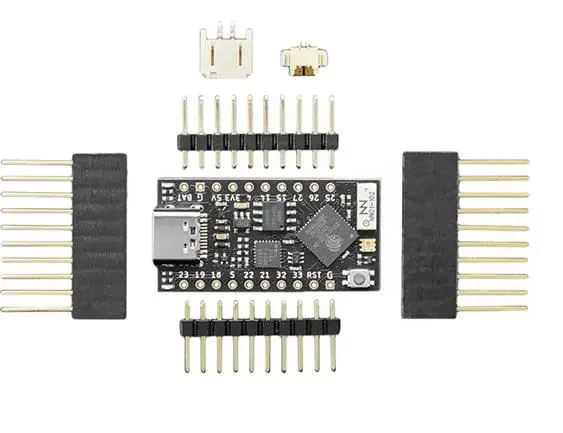
Identify the classic TinyPICO
This guide covers the classic ESP32 TinyPICO USB-C listing. TinyPICO Nano, TinyS3 and the newer TinyPICO[D] have different hardware: select the exact board before installing firmware. Start with the board alone, a data-capable USB-C cable and Arduino IDE. Disconnect shields and batteries while establishing the first USB connection.
Find the correct USB driver
| Board marking / generation | USB bridge | Action |
|---|---|---|
| TinyPICO V2 | CP2104 | Install the Silicon Labs CP210x driver if no COM port appears |
| TinyPICO V3 | CH9102F | Install the WCH driver matching the bridge chip |
Read the bridge marking or bag label rather than choosing a driver from the USB socket shape. Compare the operating-system port list before and after plugging in the board. A power LED alone does not prove that the cable carries data.
Select Arduino board settings
- Install esp32 by Espressif Systems in Boards Manager.
- Select UM TinyPICO from that package, then the newly detected COM port. The example below was compiled with version 3.3.0.
- Use the TinyPICO profile’s flash/PSRAM defaults. If the menu exposes PSRAM, enable the supported Quad/QSPI option for this classic board. Do not select an S3 profile.
- Open a new sketch and paste the diagnostic code. Upload with the serial monitor closed.
Upload the minimal diagnostic sketch
#include <Arduino.h>
void setup() {
  Serial.begin(115200);
  delay(2000);
}
void loop() {
  Serial.printf("%s | cores=%u | flash=%lu | PSRAM=%lu | free heap=%lu\n",
    ESP.getChipModel(), ESP.getChipCores(),
    (unsigned long)ESP.getFlashChipSize(),
    (unsigned long)ESP.getPsramSize(),
    (unsigned long)ESP.getFreeHeap());
  delay(2000);
}
No LED pin, Wi-Fi password or external library is required. The diagnostic deliberately avoids assumptions about the RGB LED wiring and does not transmit Wi-Fi packets.
Read the result
Open Serial Monitor at 115200 baud. A new line should appear about every two seconds. Check that the chip is ESP32, the detected flash size matches your board and PSRAM is nonzero when enabled. The manufacturer documents 4 MB Quad PSRAM for the classic TinyPICO. A zero value is a reason to check settings and revision, not proof that the board is damaged.
Troubleshoot the first upload
| Symptom | Next check |
|---|---|
| No COM port | Try a known data cable and the driver matching CP2104/CH9102F |
| Connecting repeatedly | Remove external wiring, close other port users and reset before retrying |
| Upload starts then fails | Try a shorter cable, direct USB port and lower upload speed |
| PSRAM missing | Confirm classic TinyPICO profile and PSRAM setting; do not copy OPI settings from S3 tutorials |
Next project
Save this sketch and its serial output as a known starting point. Add one peripheral at a time using the manufacturer pin map and 3.3 V logic. For the onboard DotStar RGB LED, start from the TinyPICO helper examples; it is not the same interface as a one-wire WS2812 LED.
Downloads, references and validation
Download the minimal Arduino sketch (.zip)
Reviewed 21 October 2026. The downloadable minimal sketch was compiled using Arduino-ESP32 3.3.0 with the board profile recorded in its README. This checks software compilation; wiring, sensor readings and supplied hardware have not been bench-tested.
Compatible product and related tutorials
Share the product link, hardware revision, software version and any error messages.
Contact ESP32S support →