XIAO Expansion Base: OLED, Button & Grove Setup
Bring up the XIAO expansion base with a XIAO ESP32-S3, test the OLED and user button and understand its shared peripheral pins.
On this page
Identify the base and controllerAssemble the first USB-powered setupUnderstand the shared pin routesInstall the display librariesDisplay the user-button stateAdd the other base functions graduallyTroubleshootingReferences and further readingRelated product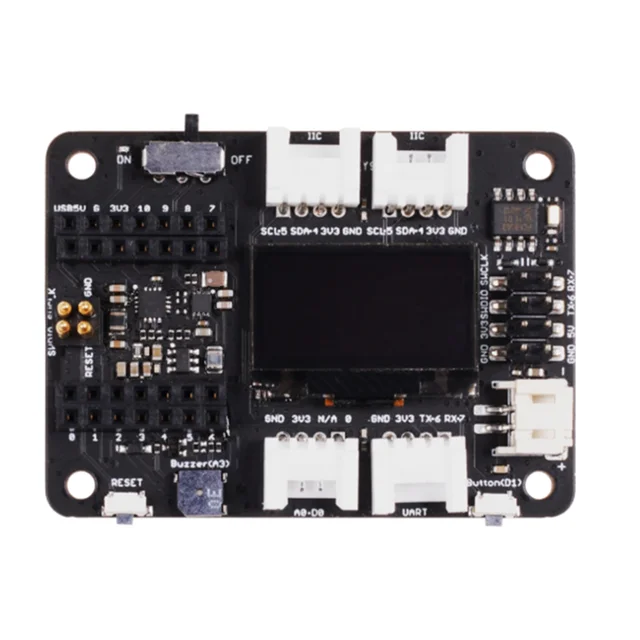
Start using the Seeed Studio Expansion Base for XIAO with a XIAO ESP32-S3 controller. The first exercise displays the user-button state on the onboard OLED, then explains how to add Grove peripherals without confusing header labels with chip GPIO numbers.
Identify the base and controller
The expansion base is an accessory, not a standalone programmable XIAO. It carries an OLED, user button and other peripherals. The example below specifically selects XIAO_ESP32S3; a SAMD21 or another XIAO needs its own board package and pin definitions. Verify compatibility and physical clearance for the exact controller and any attached Sense expansion.
Assemble the first USB-powered setup
- Disconnect power and leave batteries, microSD cards and external Grove modules out of the initial setup.
- Align the XIAO with the matching USB orientation and both socket rows. Check that no row is offset by one pin.
- Connect USB to the XIAO, then confirm that its standalone serial/upload test works.
- Keep the base on a non-conductive surface so exposed contacts cannot short against loose hardware.
For controller setup see the XIAO ESP32-S3 guide. The OLED/button exercise does not need a camera or Sense expansion.
Understand the shared pin routes
| Base function | Example software route | What to check |
|---|---|---|
| I2C / OLED | Wire on SDA and SCL | Use the selected XIAO profile's header mapping |
| User button | D1, active low with INPUT_PULLUP | D1 is a XIAO header label, not a literal GPIO1 |
| Grove UART | Controller TX/RX header route | Confirm device protocol and logic level |
| Buzzer / storage / RTC | Separate exercises | Check shared pins and device-specific examples |
On a selected XIAO profile, SDA, SCL and D1 resolve to the correct chip pins. Replacing them with numbers copied from an older SAMD21 example can silently select the wrong pins on an ESP32-S3.
Install the display libraries
In Arduino Library Manager install Adafruit SSD1306, Adafruit GFX Library and Adafruit BusIO. Accept the listed dependencies. Create a new sketch, paste the complete example, click Verify, then Upload. Keep a record of your board profile and library versions when reporting an issue.
The example uses the base's 128×64 SSD1306 OLED at the usual 0x3C address. If it stays blank, run an I2C scan using Wire.begin(SDA, SCL) on this XIAO, rather than a scanner wired for another controller.
Display the user-button state
Upload with the XIAO_ESP32S3 board selected and USB CDC enabled. Press the base's user button and look for the text to change. RESET is a separate button and restarts the controller.
#include <Arduino.h>
#include <Wire.h>
#include <Adafruit_GFX.h>
#include <Adafruit_SSD1306.h>

Adafruit_SSD1306 display(128, 64, &Wire, -1);
void setup() {
  Serial.begin(115200);
  delay(1500);
  pinMode(D1, INPUT_PULLUP); // XIAO header label D1, not GPIO1.
  Wire.begin(SDA, SCL);     // From the selected XIAO_ESP32S3 profile.
  if (!display.begin(SSD1306_SWITCHCAPVCC, 0x3C, true, false)) {
    Serial.println("OLED initialization failed.");
    while (true) delay(1000);
  }
  display.clearDisplay();
  display.setTextColor(SSD1306_WHITE);
  display.setTextSize(1);
}
void loop() {
  const bool pressed = digitalRead(D1) == LOW;
  display.clearDisplay();
  display.setCursor(0, 0);
  display.println("XIAO Expansion Base");
  display.println(pressed ? "Button: PRESSED" : "Button: released");
  display.printf("Uptime: %lu s", millis() / 1000UL);
  display.display();
  Serial.println(pressed ? "Button pressed" : "Button released");
  delay(150);
}
Add the other base functions gradually
After the OLED/button test works, add one function at a time using the manufacturer's appropriate example. For an I2C sensor, confirm its address does not conflict with the OLED or RTC. Use the AHT20 wiring guide and change its Wire pins to this XIAO's mapping. For microSD and the buzzer, check the actual base revision and controller pin routes before reusing another XIAO model's constants.
Keep the first test USB powered. Before a later battery-powered build, verify the connector polarity, supported cell type and the base's charging documentation. Matching connector housings alone do not establish compatible polarity.
Troubleshooting
| Symptom | Check next |
|---|---|
| XIAO works alone, base does not | Power off and inspect alignment, socket continuity and shorts. |
| OLED blank | Check I2C address, SDA/SCL from the selected XIAO profile, display type and supply. |
| Button never changes | Use D1 from the correct profile, check its active-low state and distinguish USER from RESET. |
| Example for SAMD21 fails on S3 | Select the correct package and replace hard-coded GPIO assumptions with the appropriate profile mapping. |
| An added module stops another function | Check shared pins, bus address conflicts and power demand; return to the minimal test. |
References and further reading
- Seeed Expansion Base documentation
- XIAO ESP32-S3 pin multiplexing
- XIAO S3 Arduino pin definitions
- SSD1306 API
Related product
Share the product link, hardware revision, software version and any error messages.
Contact ESP32S support →