4.2-inch E-Paper: GDEY042T81 / ESP32
GDEY042T81 / SSD1683: example ESP32 wiring, a first-image sketch, bitmap preparation and refresh troubleshooting.
On this page
Identify the exact panelWhat you needExample wiringDisplay a first imageImages and memoryPartial updates and application designTroubleshootingReferences and support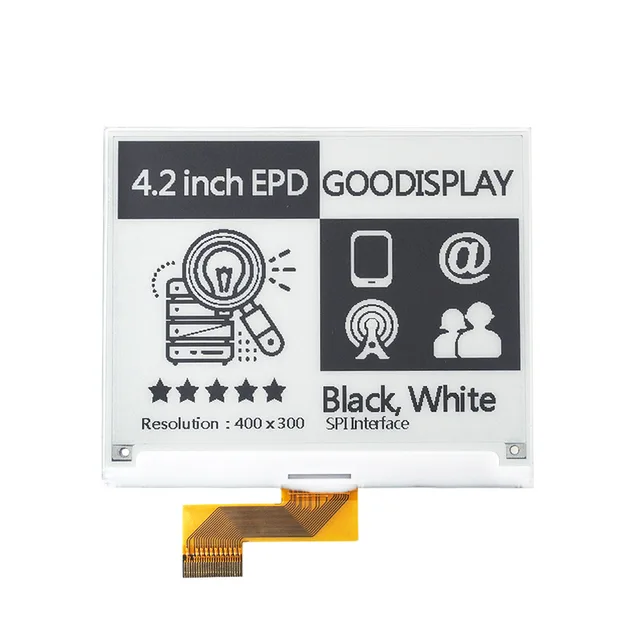
Identify the exact panel
This guide covers GDEY042T81, a 400×300 monochrome SPI panel using SSD1683. Check the flexible-cable marking and driver-board documentation. A screen of the same size or controller family is not automatically interchangeable.
What you need
- The identified panel and a compatible driver board with documented 3.3 V logic support.
- A classic ESP32-WROOM-32 development board, USB data cable and short jumper wires.
- Arduino IDE, Espressif ESP32 board support, GxEPD2 and Adafruit GFX.
A raw FPC panel needs the matching drive circuitry; do not connect its flexible cable directly to ESP32 GPIOs. Confirm whether the selected product option includes a driver board.
Example wiring
Power off before connecting. For this classic ESP32 example, connect the driver module as follows. Supply voltage must follow the driver board specification; do not assume a 5 V supply implies 5 V signal tolerance.
| Driver signal | Connection |
|---|---|
| VCC / GND | Documented supply / ESP32 GND |
| DIN / MOSI | GPIO23 |
| CLK / SCK | GPIO18 |
| CS | GPIO27 |
| DC | GPIO26 |
| RST | GPIO25 |
| BUSY | GPIO33 |
MISO is unused. These are example assignments, not pinouts for C3, S3 or an integrated board. Handle any driver-board power-enable signal using its schematic.
Display a first image
- Install the libraries and select the exact ESP32 board and serial port.
- Confirm that the installed GxEPD2 version includes
GxEPD2_420_GDEY042T81. - Upload the sketch below and open Serial Monitor at 115200 baud.
- Expect a black border and text on white. A retained old image does not prove that the display has powered up.
#include <SPI.h>
#include <GxEPD2_BW.h>

constexpr int CS_PIN = 27, DC_PIN = 26;
constexpr int RST_PIN = 25, BUSY_PIN = 33;
GxEPD2_BW<GxEPD2_420_GDEY042T81, GxEPD2_420_GDEY042T81::HEIGHT> display(
  GxEPD2_420_GDEY042T81(CS_PIN, DC_PIN, RST_PIN, BUSY_PIN));

void setup() {
  Serial.begin(115200);
  SPI.begin(18, -1, 23, CS_PIN);
  display.epd2.selectSPI(SPI, SPISettings(4000000, MSBFIRST, SPI_MODE0));
  display.init(115200);
  display.setRotation(0);
  display.setFullWindow();
  display.firstPage();
  do {
    display.fillScreen(GxEPD_WHITE);
    display.setTextColor(GxEPD_BLACK);
    display.setTextSize(2);
    display.setCursor(12, 20);
    display.print("ESP32S E-Paper");
    display.drawRect(8, 8, display.width()-16, display.height()-16, GxEPD_BLACK);
  } while (display.nextPage());
  display.hibernate();
}

void loop() {}
The selected rotation determines landscape/portrait orientation. The first test uses a full refresh and deliberately stays static. Display hibernation does not put the ESP32 into deep sleep. This monochrome sketch does not demonstrate four-level grayscale, even if another vendor example offers a grayscale waveform.
Images and memory
Prepare a one-bit black/white bitmap in the desired orientation and use a supported GFX bitmap API inside the page loop. A tightly packed full image requires approximately 15,000 bytes, before row padding or additional buffers. Scale and dither artwork before embedding it; do not pass JPEG bytes directly to a monochrome bitmap drawing function.
Partial updates and application design
The matching GxEPD2 driver advertises partial-update support. First prove full refresh, then study its partial-window example. Keep the required previous-image state, respect window alignment and follow panel-specific timing and temperature limits. Do not promise the product-page refresh figure for every library mode or operating condition.
For a sensor label or dashboard, separate data collection from drawing. Refresh only when useful content changes, include a last-updated indication and finish the display operation before sleeping or switching off its power.
Troubleshooting
| Symptom | Next check |
|---|---|
| Blank display or BUSY timeout | Check power, ground, reset, BUSY wiring, panel marking and exact driver class. |
| Wrong orientation or clipped image | Check rotation and actual canvas dimensions. |
| Increasing ghosting | Return to a supported full refresh and review the partial-update baseline and interval. |
| ESP32 resets | Inspect supply droop and serial logs; test without networking first. |
References and support
Reviewed October 15, 2026. This is an original ESP32S integration guide based on the listed documentation; it has not been tested on a physical unit here. Match the supplied hardware revision before using a driver or firmware image.
See the e-paper setup and troubleshooting basics and firmware flashing guide. For support, send the product link, panel/PCB markings, software version, wiring and serial log.
Share the product link, hardware revision, software version and any error messages.
Contact ESP32S support →