XIAO ESP32-S3 Sense: Arduino, PSRAM & Camera Setup
Identify your Sense camera revision, check Flash and PSRAM, configure CameraWebServer and troubleshoot the first stream.
On this page
Identify the Sense version and camera batchAssemble and connect the kitConfigure Arduino for the XIAOVerify serial output and PSRAMStart the CameraWebServer exampleDiagnose camera and memory errorsAdd microphone and storage one feature at a timeReferences and next stepsRelated products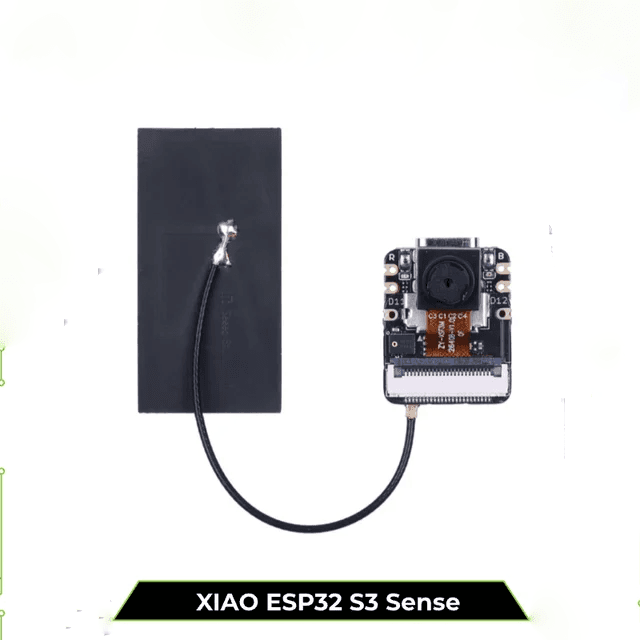
Identify the Sense version and camera batch
This guide is for the Seeed Studio XIAO ESP32-S3 Sense kit: the S3 controller plus its camera/microphone/SD expansion board. A plain XIAO ESP32-S3 without the Sense expansion cannot run the camera example on its own.
The linked store listing names OV2640. Seeed documents later Sense batches with OV3660 and newer OV5640 camera modules. Check your actual kit and camera marking before choosing an example; the listing name is not proof that every shipped batch has the same sensor. Use the manufacturer's revision-specific files for replacements.
Assemble and connect the kit
- With power disconnected, seat the Sense expansion on its board-to-board connector and check its alignment.
- Inspect that the camera ribbon is seated and its connector latch is closed.
- Attach the supplied external antenna to the correct antenna connector before the Wi-Fi test.
- Connect a USB data cable directly to the XIAO. Leave battery and other peripherals disconnected for initial setup.
A microSD card is not needed for the first live camera stream. Test it separately later using the Sense SD example.
Configure Arduino for the XIAO
Install the stable esp32 by Espressif Systems package, then select XIAO_ESP32S3. For the standard 8 MB Flash / 8 MB PSRAM Sense variant in this listing, use 8 MB Flash, OPI PSRAM enabled and USB CDC On Boot enabled. Keep the profile's other defaults unless your hardware guide requires a change.
Use the XIAO S3 profile rather than a similarly named XIAO C3/C6 or S3 Plus profile. The example below helps confirm detected memory before starting the camera.
Verify serial output and PSRAM
Upload this sketch, open Serial Monitor at 115200 and reset the board. Confirm ESP32-S3 is reported and PSRAM is nonzero. The standard listed memory sizes correspond to 8,388,608 bytes each; a different result needs investigation against the exact hardware revision and Tools settings.
#include <Arduino.h>

void setup() {
  Serial.begin(115200);
  const unsigned long started = millis();
  while (!Serial && millis() - started < 3000) delay(10);
}

void loop() {
  Serial.printf("Chip: %s | Flash: %lu | PSRAM: %lu bytes\n",
                ESP.getChipModel(),
                (unsigned long)ESP.getFlashChipSize(),
                (unsigned long)ESP.getPsramSize());
  delay(2000);
}
Start the CameraWebServer example
- Open File → Examples → ESP32 → Camera → CameraWebServer while the XIAO S3 target is selected. Keep all example tabs together.
- For Arduino-ESP32 3.3.0, open
board_config.h, disable the currently selected camera-board definition and enable onlyCAMERA_MODEL_XIAO_ESP32S3. Other releases may place the selection in the main sketch. Read the example's comments. - Enter your own 2.4 GHz Wi-Fi SSID and password in the example's credential fields.
- Keep OPI PSRAM enabled and select an application partition of at least 3 MB. The XIAO profile's default 8 MB partition scheme in core 3.3.0 provides a 3 MB application.
- Upload, open Serial Monitor and reset. Read the local camera URL printed after Wi-Fi connects.
- Open that address from the same local network and start the stream. Begin with a modest JPEG frame size, then increase it after the basic stream is stable.
The camera-board definition selects the XIAO wiring. It is not the sensor model selector. The driver still needs to support the actual camera fitted to the kit. For newer camera batches, use Seeed's current camera example when it includes changes required by that sensor; autofocus support on an OV5640 also depends on the example implementation.
Diagnose camera and memory errors
| Result | What to check |
|---|---|
| No Serial after upload | Native USB CDC setting, re-enumerated port and Reset. Recover with BOOT held while tapping Reset if needed. |
| PSRAM reports zero | Correct XIAO S3 target, OPI PSRAM setting and actual hardware variant. |
| Camera probe fails | Power off, reseat the expansion and ribbon, confirm the XIAO camera-board definition and actual sensor support. |
| Image starts but resets under load | Try a reliable USB cable and supply, then reduce frame size and check PSRAM. |
| Camera URL cannot be opened | Correct local IP, same network and any client-isolation setting. Start with a local-network test. |
Add microphone and storage one feature at a time
Once the camera works, use the manufacturer microphone and microSD examples for the Sense expansion. Check the pin multiplexing guide before connecting extra hardware because expansion functions share resources. A successful serial test does not validate the camera, audio input or SD wiring.
For a failed upload on another camera board, use our ESP32-CAM upload troubleshooting guide and follow the branch for your own chip and board.
References and next steps
- Seeed XIAO ESP32-S3 series documentation
- Seeed Sense camera guide
- Espressif CameraWebServer, Arduino-ESP32 3.3.0
- Seeed XIAO pin multiplexing
Need help? Send the product link, board photographs, package version, selected Tools options and complete error output to ESP32S support.
Related products
Share the product link, hardware revision, software version and any error messages.
Contact ESP32S support →