ESP32-C6 Supermini: Arduino, Wi-Fi & USB Recovery
Set up the C6 target, run first serial and 2.4 GHz Wi-Fi tests, recover native USB and plan a Zigbee project.
On this page
Identify the C6 board and its wireless modesPrepare USB and Arduino IDESet the correct board targetConfirm upload and serial operationScan your 2.4 GHz networkRecover USB and download modeMove on to Zigbee or ThreadCommon C6 setup problemsReferences and next stepsRelated products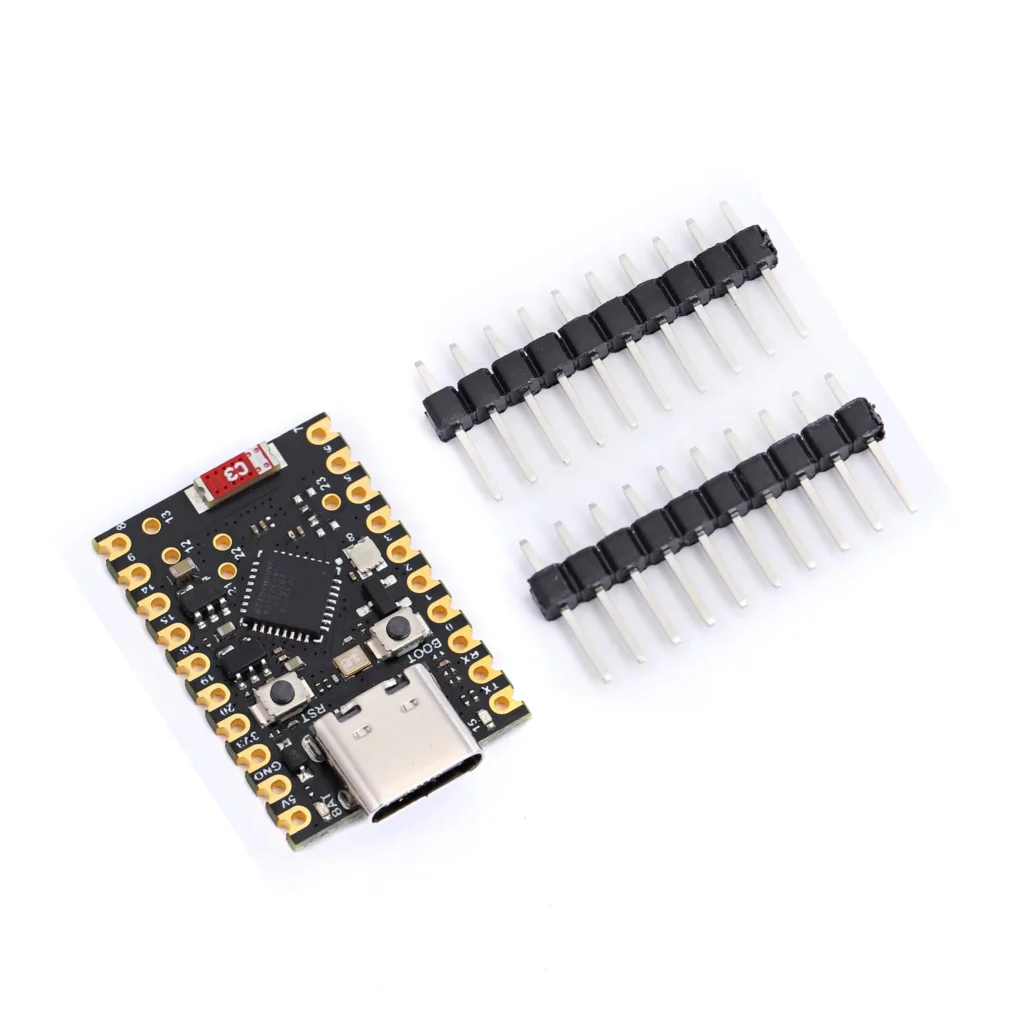
Start with a known USB data cable and the board on its own. Keep a note of your exact product variant, Arduino-ESP32 package version and Tools settings so the setup can be reproduced.
Identify the C6 board and its wireless modes
This page is for the ESP32-C6 Supermini, not the visually similar C3, S3 or H2 variants. Confirm the printed chip or module marking before uploading. Its Wi-Fi, Bluetooth LE and IEEE 802.15.4 capabilities are used through the appropriate software stack.
For your first test, use ordinary Wi-Fi scanning. Wi-Fi 6 on ESP32-C6 operates in the 2.4 GHz band; a 5 GHz-only network will not appear. A Zigbee or Thread application is a separate firmware project, not a feature enabled by uploading a Wi-Fi sketch.
Prepare USB and Arduino IDE
- Connect only the development board with a USB data cable.
- Install the stable Espressif ESP32 package through Boards Manager. Follow the general setup guide if it is not installed.
- Select the board's port after comparing the connected and disconnected port lists.
The native USB Serial/JTAG interface normally uses the operating system's CDC support. Install a bridge-specific driver only if your particular revision actually has that bridge.
Set the correct board target
| Setting | For the first Wi-Fi test |
|---|---|
| Board | ESP32C6 Dev Module, or the exact manufacturer profile |
| USB CDC On Boot | Enabled for Serial over native USB |
| Zigbee Mode, if present | Disabled for this ordinary Wi-Fi sketch |
| Flash / partition settings | Match the actual board; retain the matching profile's defaults initially |
| Serial Monitor | 115200 baud |
If ESP32C6 Dev Module is missing, check that the installed esp32 by Espressif Systems package supports C6 and update through Boards Manager. Selecting ESP32 Dev Module does not turn it into a C6 target.
Confirm upload and serial operation
Upload the following program before attaching any peripherals. Open Serial Monitor and reset the board. Confirm the reported chip is ESP32-C6 and that the counter keeps updating.
#include <Arduino.h>

void setup() {
  Serial.begin(115200);
  const unsigned long started = millis();
  while (!Serial && millis() - started < 3000) delay(10);
  Serial.printf("Chip: %s\n", ESP.getChipModel());
  Serial.printf("Flash detected: %lu bytes\n",
                (unsigned long)ESP.getFlashChipSize());
}

void loop() {
  Serial.printf("Running: %lu seconds\n", millis() / 1000UL);
  delay(1000);
}
Scan your 2.4 GHz network
Upload this second sketch. No Wi-Fi password or Internet connection is required. Retry near a known 2.4 GHz access point if the scan returns zero networks.
#include <Arduino.h>
#include <WiFi.h>

void setup() {
  Serial.begin(115200);
  const unsigned long started = millis();
  while (!Serial && millis() - started < 3000) delay(10);
  WiFi.mode(WIFI_STA);
  WiFi.disconnect();
  delay(200);
}

void loop() {
  const int count = WiFi.scanNetworks();
  if (count < 0) {
    Serial.println("Scan failed; reset and check board settings.");
  } else {
    Serial.printf("Networks found: %d\n", count);
    for (int i = 0; i < count; ++i) {
      Serial.printf("%s : %d dBm\n",
                    WiFi.SSID(i).c_str(), (int)WiFi.RSSI(i));
    }
  }
  WiFi.scanDelete();
  delay(10000);
}
Recover USB and download mode
If uploading hangs at Connecting, close applications using the port. Hold BOOT, tap Reset, release BOOT, then select the resulting port and upload again. Reset normally after flashing. GPIO9 is the C6 download strap, so peripheral wiring can interfere with entering the loader.
Native USB uses GPIO12/13 on the C6. Reassigning those signals or entering deep sleep can make the USB device disappear. Restore a minimal serial sketch using download mode before investigating other hardware.
Move on to Zigbee or Thread
- Choose which network you want to build and obtain a compatible coordinator or Thread infrastructure.
- Start with a C6-compatible example from the chosen stack; the Arduino Zigbee examples document their own Tools and partition requirements.
- Set the device role and required partition scheme exactly as that example specifies.
- Keep the known-good Wi-Fi or serial sketch available for recovery.
Use Espressif's Zigbee library guide for the supported Arduino workflow. Radio hardware support alone does not guarantee compatibility with every gateway or ready-made firmware image.
Common C6 setup problems
| Problem | Next step |
|---|---|
| Missing C6 libraries or target | Check the installed package and example's required release. |
| No Serial output | Enable USB CDC for native USB and reselect the port after reset. |
| Onboard LED does not respond to digitalWrite | Some revisions use an addressable RGB LED. Confirm the board's LED type and pin. |
| Zigbee device will not join | Check firmware role, pairing mode and coordinator support, rather than Wi-Fi settings. |
For missing ports or serial errors, also see USB and upload troubleshooting.
References and next steps
- Arduino-ESP32 board settings
- ESP32-C6 USB Serial/JTAG
- ESP32-C6 download mode
- Espressif Arduino Zigbee documentation
- Espressif Wi-Fi API
Need help? Send the product link, board photographs, package version, selected Tools options and complete error output to ESP32S support.
Related products
Share the product link, hardware revision, software version and any error messages.
Contact ESP32S support →