SenseCAP Solar Node P1 / P1-Pro: Meshtastic Setup and Outdoor Checks
Compare SenseCAP P1 and P1-Pro, select the correct Meshtastic firmware, test a first message and check solar power before outdoor deployment.
On this page
Identify P1 versus P1-ProBegin with a USB-powered bench setupSelect the Solar Node firmware targetPair, configure and exchange a first messageVerify GPS and the battery optionCheck solar deployment before leaving the node outsideTroubleshootingDownloads and reference versionsProduct and related tutorials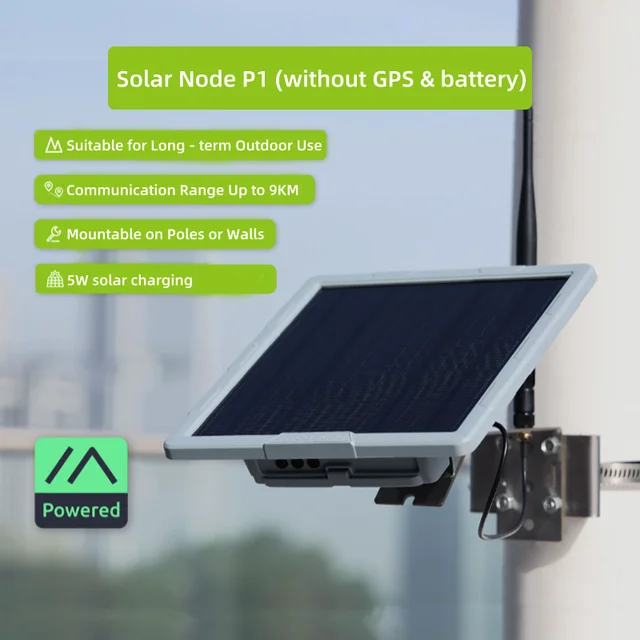
Identify P1 versus P1-Pro
This guide covers the SenseCAP Solar Node options sold on this product page. It uses a XIAO nRF52840 Plus controller and an SX1262 radio, so an ESP32 sketch or esptool upload is not the correct starting point.
| Option | GPS and batteries | Shared hardware |
|---|---|---|
| P1 | GPS and four 18650 cells are not included in the standard P1 package | 5 W panel, radio and outdoor housing |
| P1-Pro | Manufacturer package includes L76K GPS and four 3350 mAh cells | Same Solar Node firmware family |
Check the selected option and received package before buying accessories. A battery holder does not mean batteries are installed.
Begin with a USB-powered bench setup
- Attach the matching LoRa antenna and extension cable before powering the node.
- Use the manufacturer-specified 5 V USB supply/data connection for initial setup. Activate the device over USB before relying on a power-button press.
- Prepare a second working Meshtastic radio and note each radio’s firmware version. If the Solar Node already connects to the app, test it before replacing firmware.
Select the Solar Node firmware target
Use Seeed SenseCAP Solar Node in the Meshtastic flasher. The documented application filename contains seeed_solar_node and ends in .uf2. Do not substitute Wio Tracker L1 or ESP32 firmware. Export settings before an update: Seeed’s Solar Node workflow includes an erase image followed by application UF2 in DFU mode. Follow those steps in order, wait for drive removal/reboot, and avoid NRF-OTA for this board. A working node does not need to be erased simply to begin configuration.
Pair, configure and exchange a first message
- Connect with the Meshtastic app or web client. Use the device’s configured pairing PIN; the manufacturer default is only applicable if unchanged.
- Choose the LoRa region for your location and the matching hardware/antenna band. On both radios align the modem preset and channel/key.
- Give the node a recognisable name, save the settings and wait for any requested reboot.
- Send one short channel message in each direction. Record whether the receiving node actually shows it rather than judging success from phone pairing alone.
Verify GPS and the battery option
A standard P1 will not acquire a GPS fix without the optional module. For P1-Pro, enable position acquisition and test outside with a clear sky view. A stale location shown in the phone is not evidence of a fresh fix. If installing P1 cells or a GPS module, use Seeed’s matching installation instructions and specified cell type/polarity; do not infer holder compatibility from “18650” alone.
Check solar deployment before leaving the node outside
Prove the two-way radio link on USB first, then test the installed battery and panel. Record state of charge at comparable morning/evening times over several days, including poor weather. A 5 W panel rating is not a guarantee of daily energy yield or permanent operation. Choose a position with useful daylight and a clear antenna path, secure the cable mechanically and restore the housing seal after opening it. Use a network role deliberately; calling every fixed node a router can change network behaviour.
Troubleshooting
| Observation | Check next |
|---|---|
| No response on first power-button use | Activate/charge over the specified USB input; check selected package and power switch |
| Pairs but no radio messages | Region, channel/key, modem preset, antenna and the second radio |
| No GPS on P1 | Whether a GPS module was actually installed |
| Runs in sun but stops overnight | Installed cells, their connection/state of charge and the actual energy budget |
| Update does not boot | Exact Solar Node target and ordered DFU/erase/application procedure |
Downloads and reference versions
Use the official firmware selector linked below rather than a firmware binary for a similarly named device.
- Seeed Solar Node version comparison
- Seeed Solar Node setup and recovery
- Meshtastic Solar Node hardware target
- Meshtastic Web Flasher
Reviewed 22 October 2026. The configuration and firmware-selection workflow was reviewed against the manufacturer and Meshtastic documentation. We have not built or physically tested the complete firmware for this guide. No physical bench test was performed.
Product and related tutorials
Share the product link, hardware revision, software version and any error messages.
Contact ESP32S support →