ESP32-S3 1.75-inch AMOLED: Arduino Display & Touch Setup
Set up the ESP32-S3 1.75-inch AMOLED board, run the matching display and touch examples, and diagnose a blank screen.
On this page
Identify the hardwarePrepare the first testDownload a matching example packageConfigure ArduinoTest display before the full interfaceCheck touch separatelyBlank screen or touch failureSupport checklistRelated productsSources and review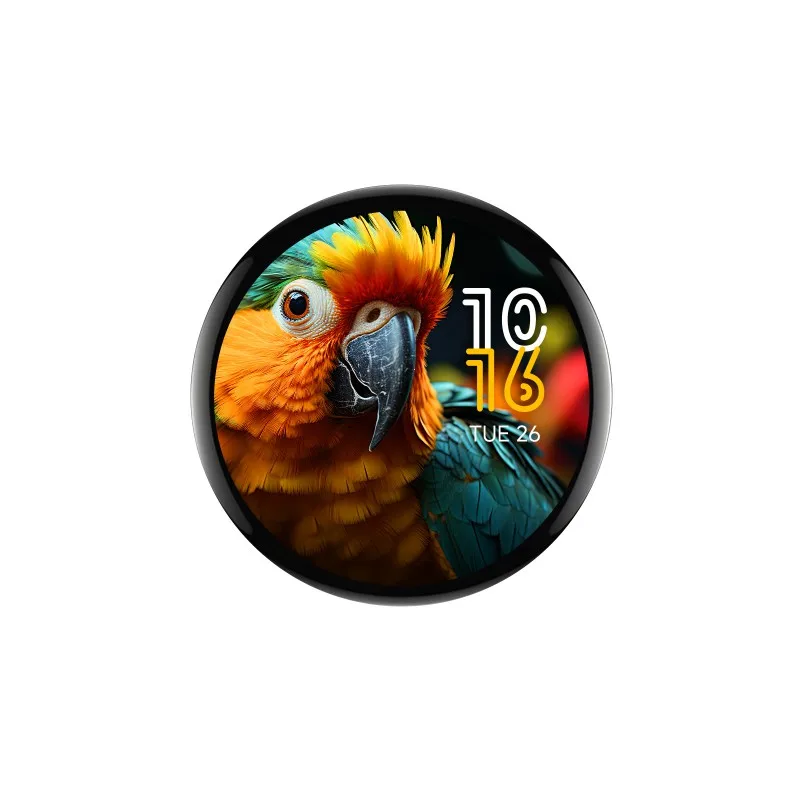
This guide covers the ESP32-S3-Touch-AMOLED-1.75 listed in our store. Check the PCB marking and selected option before downloading examples; the 1.75C and RP2350 products need different resources.
Identify the hardware
The matching board uses a 466 × 466 CO5300 QSPI display and CST9217 I2C touch controller. The documented configuration has 16MB flash and 8MB PSRAM. GPS availability depends on the version; do not expect a GPS module or antenna in every package.
Prepare the first test
Use a USB data cable and a computer. Photograph the board marking and record the original firmware behavior before uploading. Disconnect optional accessories for the initial check. Battery power is not required for a USB bring-up.
Download a matching example package
Open the manufacturer resources and obtain the package for exactly ESP32-S3-Touch-AMOLED-1.75. Keep its Arduino libraries, configuration files and pin definitions together. Save a copy and record the download date.
Configure Arduino
Follow our Arduino setup guide. The manufacturer’s documented example baseline uses Arduino-ESP32 3.1.0 and LVGL 8.4.0. Use the supplied board library and adapted graphics library; do not substitute LVGL 9 without porting. Copy the full project settings from the matching package, including flash, PSRAM and USB settings.
Test display before the full interface
Open the package’s 01_HelloWorld example, select the ESP32-S3 target and correct port, compile and upload. Reset if required. Success means visible text with stable graphics, rather than only a power light. This example overwrites the previous application.
Check touch separately
Next use the matching 05_LVGL_Widgets example. Keep its power-management and I/O-expander initialization. Test a slider and a button at several screen positions. Record whether graphics work independently of touch. A visible interface alone does not prove touch initialization succeeded.
Blank screen or touch failure
- No USB port: try another data cable and the documented download-mode sequence.
- Upload works but screen is blank: return to the unchanged vendor display example and its complete settings before changing pins or libraries.
- Graphics work but touch does not: inspect touch initialization logs and package versions; do not replace the touch controller definition with one for another round screen.
- Build errors after library updates: restore the package dependency set and rebuild.
Support checklist
Send the order number, PCB/version photos, selected product option, package version, IDE/core versions, settings and full serial log through Contact Us. Do not connect an unknown battery solely because its plug fits.
Related products
Sources and review
- https://docs.waveshare.com/ESP32-S3-Touch-AMOLED-1.75
- https://docs.waveshare.com/ESP32-S3-Touch-AMOLED-1.75/Arduino
- https://docs.waveshare.com/ESP32-S3-Touch-AMOLED-1.75/Resources-And-Documents
- https://docs.espressif.com/projects/arduino-esp32/en/latest/tutorials/cdc_dfu_flash.html
Reviewed 2026-10-30 against documentation. No physical board or camera bench test is claimed.
Share the product link, hardware revision, software version and any error messages.
Contact ESP32S support →