ESP32-S3 Supermini: Arduino USB & Memory Test
Identify an ESP32-S3 Supermini, upload a serial diagnostic, check detected memory and recover a missing USB port.
On this page
Confirm your board revisionPrepare USB and ArduinoSelect the correct USB pathUpload a diagnostic without GPIO wiringRead and interpret the resultRecover a missing portTest Wi-Fi nextWhat to send supportRelated productsSources and review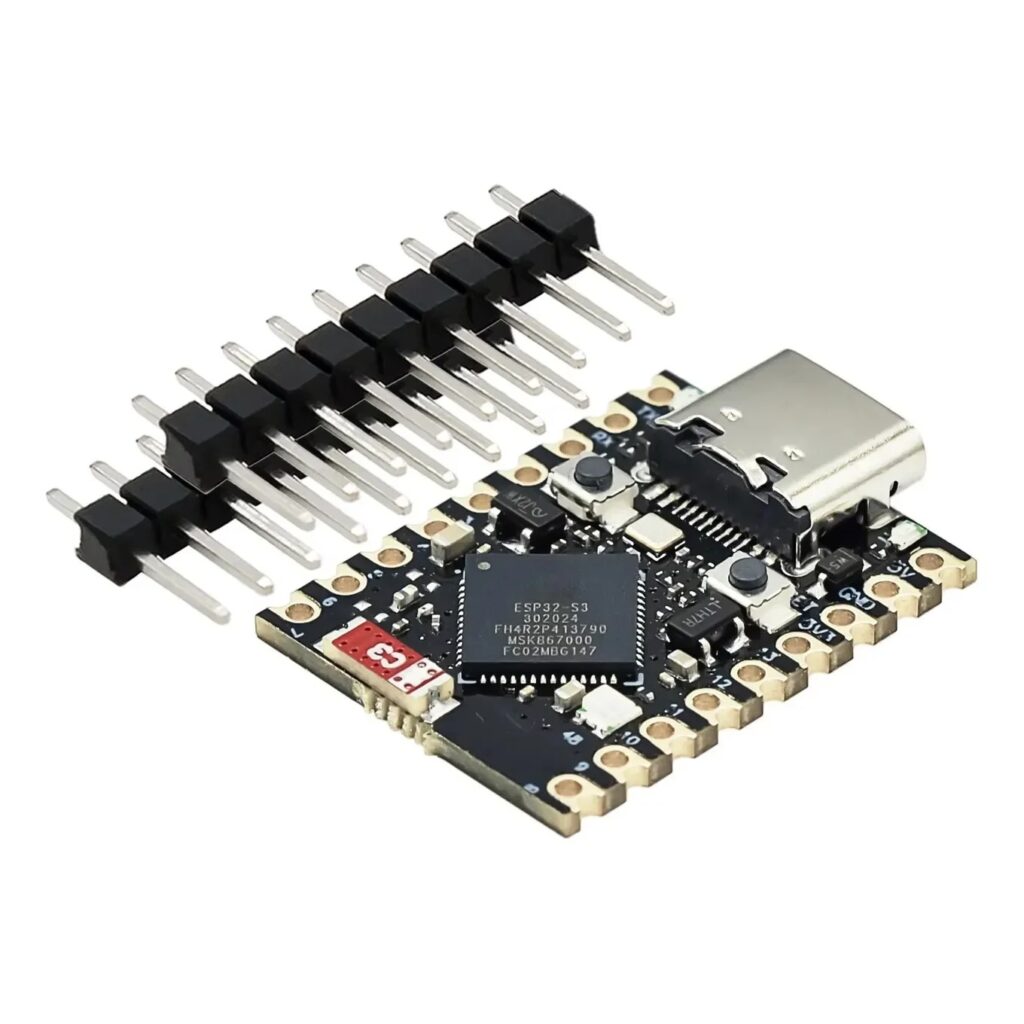
Use this guide to verify a first upload without assuming an LED pin or peripheral pinout. “Supermini” is used for several different boards; S3, C3 and C6 firmware targets are not interchangeable.
Confirm your board revision
Our listing identifies an ESP32-S3FH4R2 variant. Check the actual chip marking and delivered option. Memory and pins on another S3 board do not establish the configuration of your board. Keep clear front/back photos for support.
Prepare USB and Arduino
Start with only the board and a USB data cable. Follow Arduino setup. Install the Espressif package and select ESP32S3 Dev Module when no exact supported board profile is supplied. Set flash and PSRAM options only from the actual revision’s documentation.
Select the correct USB path
For a connector wired to native USB, Espressif documents USB CDC On Boot enabled and Upload Mode UART0 / Hardware CDC for S3. These instructions do not apply to an external USB-to-UART bridge. Identify the interface before installing CP210x or CH340 drivers.
Upload a diagnostic without GPIO wiring
Paste the sketch below into a new Arduino project. It prints detected values and a heartbeat; it does not toggle unknown pins or depend on an onboard LED.
#include <Arduino.h>
void setup() {
  Serial.begin(115200);
  unsigned long start = millis();
  while (!Serial && millis() - start < 3000) delay(10);
  Serial.printf("Chip: %s\n", ESP.getChipModel());
  Serial.printf("Flash: %lu bytes\n", (unsigned long)ESP.getFlashChipSize());
  Serial.printf("PSRAM: %lu bytes\n", (unsigned long)ESP.getPsramSize());
}
void loop() {
  Serial.printf("Alive: %lu s\n", millis()/1000UL);
  delay(1000);
}
Read and interpret the result
Open Serial Monitor at 115200 and reset. Expect an ESP32-S3 chip name and a repeating Alive message. Record flash bytes rather than copying another board’s menu setting. A zero PSRAM reading means it is not available to this program; it does not by itself prove that the hardware has no PSRAM. Check the chip variant and PSRAM configuration before changing settings.
Recover a missing port
- Disconnect peripherals and close other serial tools.
- For a board with BOOT and RESET, hold BOOT, press and release RESET, then release BOOT.
- Select the newly enumerated port and upload again.
- Reset after the first upload and reselect the application port if it changes.
If the board has different buttons, use its documented equivalent; do not short unidentified pads.
Test Wi-Fi next
After the heartbeat works, run the Arduino WiFiScan example and confirm scan output. Add one peripheral at a time using a verified pin map. This guide intentionally does not assign an LED or I2C pin to an unverified board revision.
What to send support
Provide board photos, chip marking, order number, USB device name, core version, Tools settings, upload log and diagnostic output. See USB/upload troubleshooting for further checks.
Related products
Sources and review
- https://docs.espressif.com/projects/arduino-esp32/en/latest/tutorials/cdc_dfu_flash.html
- https://docs.espressif.com/projects/arduino-esp32/en/latest/installing.html
Reviewed 2026-10-30 against documentation. No physical board or camera bench test is claimed.
Share the product link, hardware revision, software version and any error messages.
Contact ESP32S support →