XIAO ESP32-S3 LoRa: Meshtastic Setup & Recovery
Flash the correct XIAO S3 target, pair a phone, configure the LoRa region and verify two-way messages on the SX1262 kit.
On this page
Check the kit and antennaSave settings before an eraseEnter the ESP32-S3 download modeInstall the correct Meshtastic targetPair a phone and select the regionVerify with a second nodeTroubleshootingSoftware versions and validationDownloads and referencesRelated products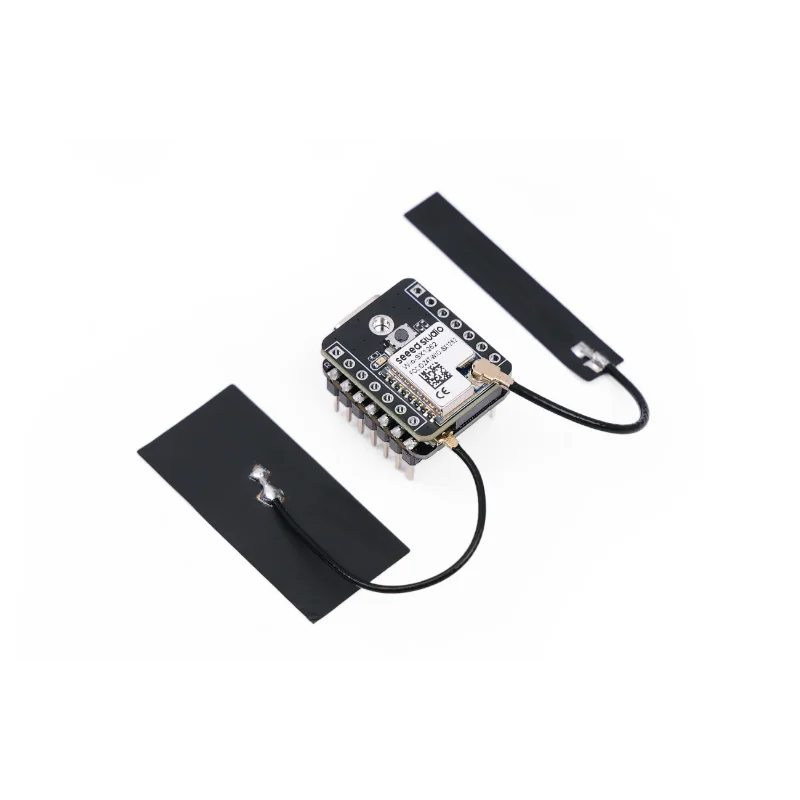
Set up Meshtastic on the XIAO ESP32S3 and Wio-SX1262 kit, including the compatible enclosure version. Use one hardware-specific workflow for both listings, while checking the supplied antenna and current firmware separately.
Check the kit and antenna
Identify the XIAO ESP32S3, its matching Wio-SX1262 extension and the LoRa antenna. The kit-specific board-to-board connection is not a universal SX1262 socket. Attach the appropriate antenna before transmitting; check the antenna band, hardware band and the region you intend to configure.
The enclosure and bare kits have been sold with different application firmware descriptions. Do not infer the installed application from the enclosure. This guide starts from an intentional USB installation of Meshtastic.
Save settings before an erase
If the unit already runs Meshtastic, record or export the channel settings, device configuration and any keys before replacing firmware. A full erase removes configuration. Keep private channel keys out of public screenshots and support messages.
Enter the ESP32-S3 download mode
- Use a known USB data cable and Chrome or Edge on a computer that supports Web Serial.
- Close serial monitors that could own the port.
- Connect the XIAO USB port. If needed, hold its BOOT button while reconnecting USB, or hold BOOT while tapping Reset, then release BOOT.
- Select the newly appearing serial/download port.
Install the correct Meshtastic target
Open the official Meshtastic Web Flasher and select Seeed XIAO S3, as specified by the kit documentation. Choose a supported stable release. For a deliberate clean installation select the erase/install option only after saving the old configuration.
Do not select a Seeed Wio Tracker nRF52840 target or an NRF-OTA update route; this controller is ESP32-S3. After flashing, reset the board and allow the application to boot. A completed transfer alone is not a radio-link test.
Pair a phone and select the region
- Open the current Meshtastic phone app and scan for the node.
- Use the pairing code shown by the attached display or obtained through the documented serial setup; do not assume every release uses the same fixed code.
- Set the correct LoRa region for the deployment and allow the node to restart.
- Choose a normal client role for an initial test.
- Record the firmware version and device identity so the second-node comparison is reproducible.
Verify with a second node
Place a compatible second node nearby with antennas attached. Match the region, modem preset and channel settings, including the channel key. Send a message in each direction and inspect the received node information. The antenna and environment determine useful range; an advertised long-distance figure is not a guaranteed result for a desk test or indoor installation.
Troubleshooting
| Symptom | Check next |
|---|---|
| No serial port | Use a data cable, enter BOOT mode and close another serial application. |
| Phone sees no node | Reset after flashing; check Bluetooth is enabled and follow the current firmware pairing instructions. |
| Pairs but no messages arrive | Compare region, preset, channel name/key and the second node before changing antenna gain. |
| Wrong application still starts | Confirm the selected port, target and whether a clean erase was actually performed. |
| Display or GPS is missing | Those peripherals depend on the supplied expansion hardware and configuration; they are not implied by the bare kit. |
Software versions and validation
Documentation reviewed on October 21, 2026. The configuration procedure was checked against the linked project documentation. It has not been deployed to a physical unit in this review.
Use the current supported Meshtastic target for this hardware; record the selected firmware version during setup.
Downloads and references
- Seeed kit hardware
- Seeed kit Meshtastic procedure
- Meshtastic LoRa configuration
- Meshtastic channels
- Espressif Arduino-ESP32 documentation
Related products
Share the product link, hardware revision, software version and any error messages.
Contact ESP32S support →