Heltec Vision Master E290: Meshtastic and E-Paper Setup
Choose the Heltec Vision Master E290 firmware target, check its 2.9-inch e-paper display and configure a first Meshtastic radio link.
On this page
Identify Vision Master E290 before flashingPower it and observe the existing screenFlash the exact Meshtastic targetConfigure and verify a radio linkTreat full and partial refresh differentlyUse expansion and low-power specifications carefullyTroubleshootingDownloads and reference versionsProduct and related tutorials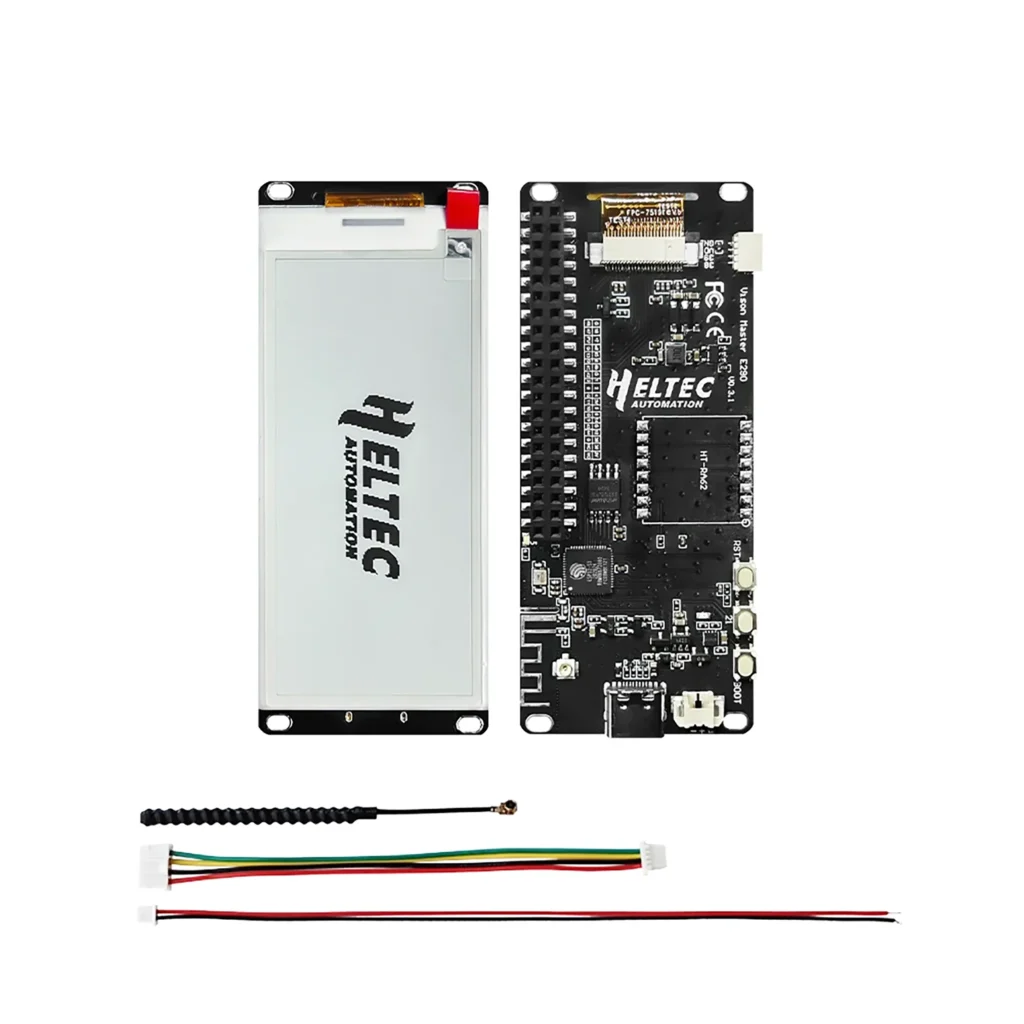
Identify Vision Master E290 before flashing
Look for HT-VME290 / Vision Master E290 on the board and check its radio-frequency option. This model combines ESP32-S3R8, a 296 × 128 black/white e-paper display and, on radio-equipped options, SX1262. It is not the 2.13-inch Vision Master E213 or a Heltec Wireless Paper board. A “2.9-inch e-paper” description alone does not identify its pin map or firmware.
| Check | What it establishes |
|---|---|
| Board name | Select the E290 target, not E213/T190/Wireless Paper |
| Radio option | Match physical module/antenna and intended operating region |
| Screen | 296 × 128 black/white panel; old content can persist without power |
| GPS | The documented E290 has no built-in GPS |
Power it and observe the existing screen
Start on USB-C with a data cable and the correct LoRa antenna attached. Save existing settings if a working application is installed. An image that stays on the panel after unplugging the board is normal e-paper behaviour; it does not prove that the processor is still running. Reconnect power and look for an actual refresh or USB enumeration.
Flash the exact Meshtastic target
- Open the Meshtastic Web Flasher and select Heltec Vision Master E290. Its firmware identifier contains
heltec-vision-master-e290. - Review the selected release and preserve/export settings before choosing an erase option. A factory reset or full erase can remove radio channels and keys.
- If automatic USB reset fails, use the documented BOOT-and-reconnect procedure to enter ESP32-S3 download mode, then select the new port.
- Complete flashing, restart if requested, reconnect to the application and confirm the reported hardware model.
Configure and verify a radio link
Set a region compatible with the operating location and selected radio band. Match modem preset and channel/key with a second working node. Give the E290 an identifiable name and exchange a short message in both directions. Check received text in the app as well as the screen: this separates a radio configuration issue from a display rendering issue. Do not copy the nRF52840 UF2 workflow from the Solar Node guide onto this ESP32-S3 device.
Treat full and partial refresh differently
E-paper can update selected content with less visual disruption, while a full refresh may flash/invert the panel and help clear residual images. The application decides when and how to refresh; exact timing depends on firmware, panel and temperature. Start with the supported default display settings. If ghosting accumulates, use the application’s documented full-refresh option rather than repeatedly power-cycling the board or selecting an unrelated panel driver.
Use expansion and low-power specifications carefully
The 2 × 20 header is a physical expansion interface. Check the E290 pin map, signal direction, power routing and host software before connecting it to a Raspberry Pi; it is not a guarantee of universal plug-and-play HAT compatibility. A quoted deep-sleep current is also not the operating draw of a Meshtastic node with radio, USB or refresh activity. Evaluate the complete application before choosing battery capacity.
Troubleshooting
| Symptom | Check next |
|---|---|
| Old picture remains after power-off | Normal image retention; look for a new refresh after power-on |
| Radio works but screen is blank | Exact E290 target, supported panel configuration and display settings |
| No packets between two nodes | Antenna, region, modem preset and channel/key |
| Very short battery runtime | Real radio/display activity, power accessories and battery wiring |
| GPS option does nothing | E290 has no documented onboard GPS; phone-supplied location is a separate feature |
Downloads and reference versions
Use the official firmware selector linked below rather than a firmware binary for a similarly named device.
- Heltec Vision Master E290 product reference
- Meshtastic Vision Master E290 instructions
- Meshtastic Web Flasher
Reviewed 22 October 2026. The configuration and firmware-selection workflow was reviewed against the manufacturer and Meshtastic documentation. We have not built or physically tested the complete firmware for this guide. No physical bench test was performed.
Product and related tutorials
Share the product link, hardware revision, software version and any error messages.
Contact ESP32S support →