MaTouch ESP32-S3 2.1-inch Rotary Display: ST7701 and LVGL Setup
Set up the MaTouch 2.1-inch rotary screen, use the correct ST7701 RGB demo and troubleshoot touch, encoder and PSRAM.
On this page
Confirm the exact rotary displayPrepare a recoverable first setupUse the matching manufacturer demoCheck the hardware mappingTest the four functions separatelyMove to LVGL and a custom interfaceTroubleshootingDownloads, references and validationCompatible product and related tutorials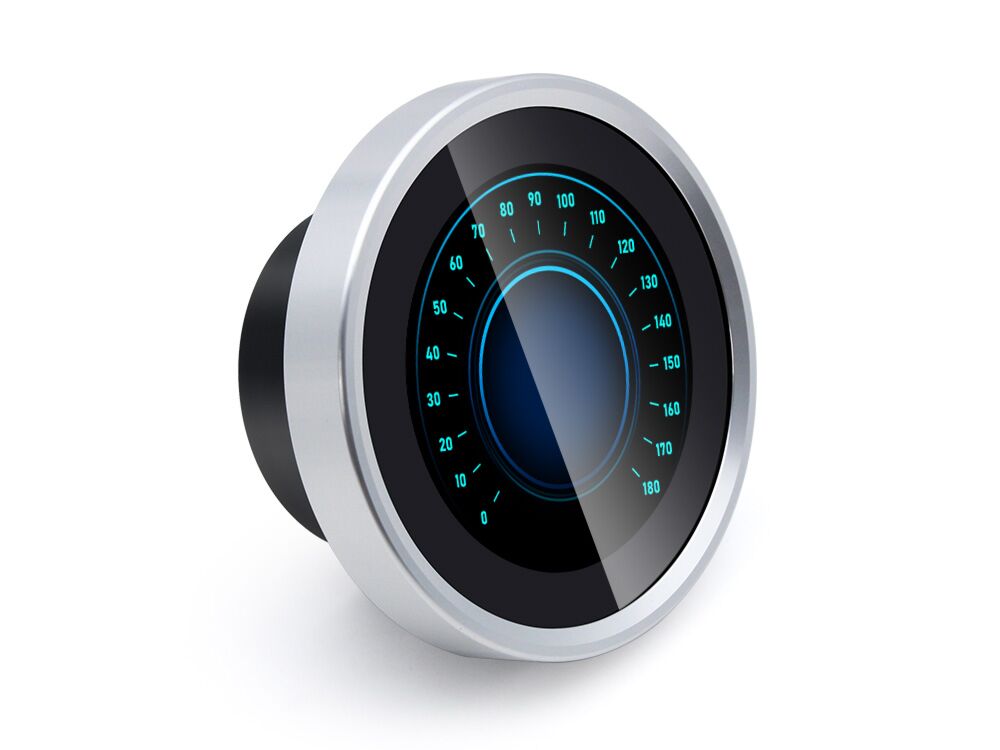
Confirm the exact rotary display
This guide covers the MaTouch ESP32-S3 2.1-inch rotary display. Begin with the printed model, not just “round ESP32 screen.” The 1.28-inch rotary model uses a different display path and firmware configuration. Uploading its example can leave a perfectly powered screen blank.
| Item | Documented hardware |
|---|---|
| Panel | 480 × 480 ST7701S over RGB565 plus control interface |
| Memory | 16 MB flash / 8 MB PSRAM |
| Inputs | Capacitive touch, rotary encoder and press action |
| USB | Native USB-C; begin with 5 V USB power |
| Storage | No onboard MicroSD interface in the documented model |
Prepare a recoverable first setup
Use a data-capable USB-C cable and the board alone. Save existing custom firmware/source before replacing it. The screen, encoder and touch panel are connected on the PCB; no external sensor wiring is needed. If the application prevents normal USB detection, use the board’s FLASH/RESET sequence to enter download mode and then select the boot port.
Use the matching manufacturer demo
- Download the 2.1-inch ST7701 manufacturer repository, keeping the full
example/fw_testfolder and its headers. Openfw_test.inofor the basic display/input test;fw_test_v2is a separate packaged LVGL example. - For the documented legacy path, the manufacturer lists ESP32 core 2.0.6/2.0.10 and GFX Library for Arduino 1.3.1. Follow the constructor/API variant for the library version you install rather than mixing versions.
- Select ESP32S3 Dev Module, 16 MB flash, OPI PSRAM and a suitable 16 MB partition scheme, such as the manufacturer’s 3 MB app / 9.9 MB FATFS choice.
- Upload the display/touch factory test first. Use the native USB port, reset after upload if needed, and verify display, touch, rotation and press separately.
- Record a working build before installing LVGL or importing a SquareLine project. This board does not require the 1.28-inch example’s SD image file.
Check the hardware mapping
| Signal / resource | Check |
|---|---|
| Pixel path | RGB565; must use the 2.1-inch panel timings and RGB wiring |
| Control path | Use the repository’s ST7701 initialisation and control pins |
| Touch and encoder | Use the matching 2.1-inch demo headers; do not copy the 1.28-inch GPIO table |
| Framebuffer | Enable OPI PSRAM before adding a large LVGL draw buffer |
These details belong to the linked manufacturer example, not every round display sold under an ESP32-S3 name. Keep the repository’s touch source with the sketch and check the PCB revision before changing driver settings.
Test the four functions separately
- Display: verify a full colour/image test without missing areas.
- Touch: test the centre and edges; note whether coordinates follow screen rotation.
- Encoder: rotate slowly in each direction and verify the expected count or progress change.
- Press: press and release once, checking that it produces one intended state change.
Record which functions pass before editing your user interface. A successful upload message only establishes a software transfer; it does not establish that touch and display drivers match the board.
Move to LVGL and a custom interface
For the packaged LVGL example, unzip example/fw_test_v2/src.zip. Open src/ui/ui.ino, keep its touch files beside it, and copy src/library/ui into your Arduino sketchbook libraries directory. Install the repository’s matching lib/mf_Lvgl.zip and its lv_conf.h for the legacy LVGL workflow. Keep the LVGL major version consistent with the exported UI. Configure 480 × 480 resolution, RGB panel timing and a draw buffer that fits enabled PSRAM; then add one label before importing a complete SquareLine project.
The manufacturer demos use older ESP32/GFX APIs. A current 3.x core or a different GFX release may require a port; changing every dependency at once makes errors hard to isolate. Preserve a working legacy environment while testing that migration.
Troubleshooting
| Symptom | Next check |
|---|---|
| Blank screen after upload | Correct model, panel driver, backlight setup and USB power |
| Framebuffer allocation error | OPI PSRAM, flash size and draw-buffer memory |
| GFX constructor does not match | The example and installed GFX library API versions |
| Touch/encoder fails independently | Matching local headers, PCB version and input configuration |
Downloads, references and validation
Use the manufacturer source package linked below; firmware must match the model and PCB revision.
Reviewed 21 October 2026. The setup workflow was checked against manufacturer documentation; the display or radio firmware has not been built or bench-tested for this article.
Compatible product and related tutorials
Share the product link, hardware revision, software version and any error messages.
Contact ESP32S support →