Wio Tracker L1: Meshtastic Setup, Versions and First Message
Set up Wio Tracker L1, Lite, Pro or E-Ink for Meshtastic, compare included hardware, pair a phone and verify a first LoRa message.
On this page
Choose the correct L1 versionPrepare a first radio testConnect to the existing Meshtastic firmwareMatch region, modem preset and channelUpdate firmware only when necessaryCheck GPS and power expectationsTroubleshoot by layerDownloads, references and validationCompatible product and related tutorials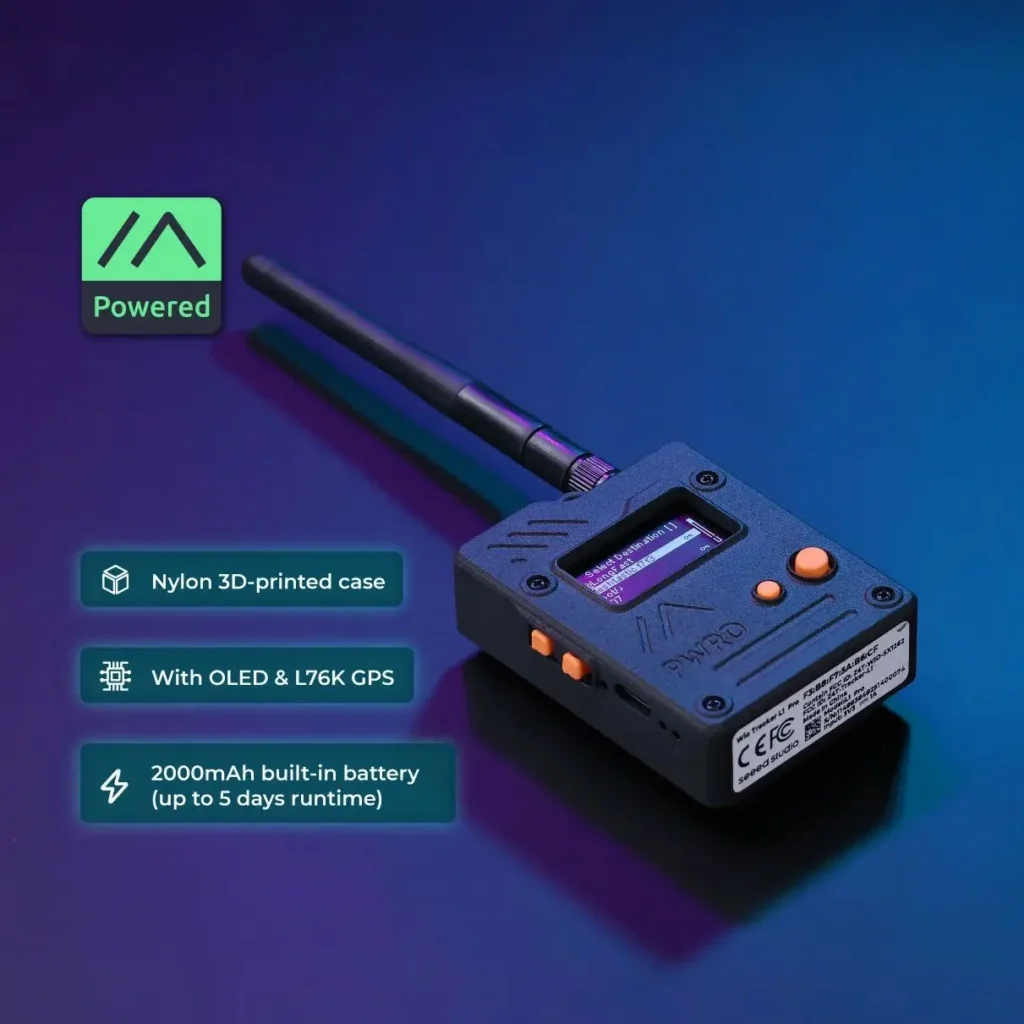
Choose the correct L1 version
Wio Tracker L1 is a Nordic nRF52840/SX1262 node with L76K GNSS, rather than an ESP32 board. An ESP32 Arduino sketch or esptool command is therefore not the correct firmware route. Check the selected option, PCB and package before updating it.
| Version | Display | Battery / enclosure distinction |
|---|---|---|
| L1 Lite | No display | Battery connector; no standard Pro enclosure |
| L1 with OLED | 1.3-inch 128 × 64 OLED | Do not assume the Pro battery or case is included |
| L1 Pro | 1.3-inch 128 × 64 OLED | Manufacturer describes a built-in 2000 mAh battery and enclosure |
| L1 E-Ink | 2.13-inch 122 × 250 e-paper | Different display configuration; confirm a compatible firmware target |
Prepare a first radio test
- Attach the correct-band LoRa antenna before powering the node. Use USB-C for the first setup rather than an unverified battery or solar panel.
- Prepare a second Meshtastic radio, a phone with the Meshtastic app and a short test message.
- Write down each radio’s hardware name, firmware version and intended region. Put the nodes a few metres apart for the first test.
Connect to the existing Meshtastic firmware
If the node advertises over Bluetooth, connect with the Meshtastic app and complete the pairing prompt using the device’s shown or documented PIN. Displayless models may need a different way to obtain the PIN. Read device information before changing settings; a screen that is blank on a Lite model is expected. Do not erase working firmware solely to begin pairing.
Match region, modem preset and channel
Set the LoRa region appropriate to where the radio will operate and the antenna/hardware band. On both test radios use the same modem preset and a matching primary channel including its key. Set a recognisable short/long node name, wait for configuration to save and let the node restart if requested. Send a channel message, then have the second radio send a reply. Record both directions rather than judging the link from a phone connection alone.
Update firmware only when necessary
In the Meshtastic flasher, select the exact supported Wio Tracker model; Seeed documents Seeed Wio Tracker L1 for its L1 workflow. Check the E-Ink release/display support separately before applying that target to the E-Ink option. Follow Seeed’s nRF52840 bootloader/DFU instructions and use the matching release file. Firmware updates or a factory reset can remove channels and keys, so export settings first.
Check GPS and power expectations
Take the GNSS antenna into an open area and wait for a location fix; indoor USB connectivity does not establish GPS reception. Keep location sharing configured for your use case. USB power, a battery connector and solar input support are separate features; they do not imply a battery is supplied in every package or that any solar panel voltage is acceptable. The manufacturer specifies a 5 V solar input ceiling.
Troubleshoot by layer
| Observation | Next step |
|---|---|
| Phone pairs but no radio messages | Compare region, modem preset, channel key and antenna band on both nodes |
| No OLED image | Confirm Lite versus OLED/E-Ink model and firmware display support |
| No GPS fix indoors | Test outside with a clear sky view and check the position configuration |
| Recovery required | Use L1 nRF52840 DFU instructions and exact model files; avoid ESP32 flashing tools |
Downloads, references and validation
Use the manufacturer source package linked below; firmware must match the model and PCB revision.
Reviewed 21 October 2026. The setup workflow was checked against manufacturer documentation; the display or radio firmware has not been built or bench-tested for this article.
Compatible product and related tutorials
Share the product link, hardware revision, software version and any error messages.
Contact ESP32S support →