LILYGO T-Display-S3: Arduino Setup & Black Screen Fix
Configure the 1.9-inch T-Display-S3 LCD, choose the matching memory and TFT_eSPI setup, and troubleshoot a blank display or USB upload.
On this page
Distinguish the 1.9-inch LCD from AMOLED modelsPrepare a known manufacturer baselineSet the board and memory optionsSelect TFT_eSPI Setup206Upload a minimal display testRecover a blank display or upload connectionTroubleshootingSoftware versions and validationDownloads and referencesRelated products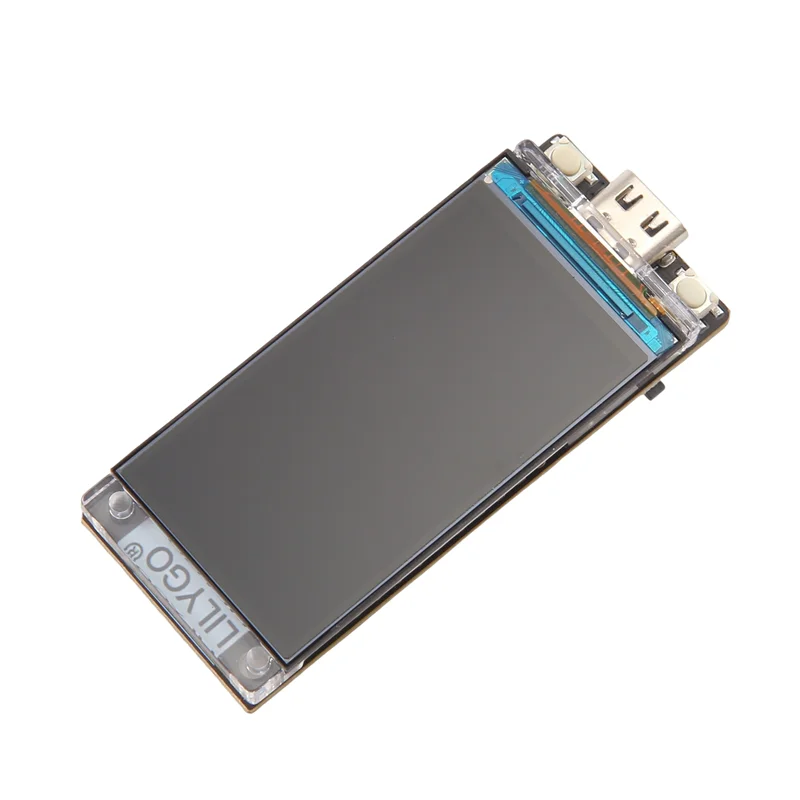
Bring up the 1.9-inch LILYGO T-Display-S3 and resolve common black-screen or USB-upload problems. This guide applies to the 170 × 320 ST7789 model, with touch-specific features kept separate from the ordinary display test.
Distinguish the 1.9-inch LCD from AMOLED models
The T-Display-S3 1.9-inch board uses an ST7789 LCD over an 8-bit parallel interface. It is not an SPI-wired generic ST7789 breakout and it is not the 1.43/1.75-inch AMOLED family. The manufacturer lists ESP32-S3R8, 16 MB Flash and 8 MB OPI PSRAM for this LCD board. A shared ESP32-S3 chip name does not make the display configuration interchangeable.
Prepare a known manufacturer baseline
Download the LILYGO T-Display-S3 repository with its examples, libraries and board settings. For a first functional check, use the repository’s complete PlatformIO project or its documented Arduino baseline rather than mixing arbitrary library copies.
The current manufacturer README documents Arduino-ESP32 2.0.14 as its manual-installation baseline and warns about display-library compatibility on later cores. Our minimal example below is separately compile-checked against 3.3.0; that is not a physical validation of the newer runtime. Use the documented baseline or factory firmware if a newer build uploads but does not display.
Set the board and memory options
| Setting | Manufacturer LCD baseline |
|---|---|
| Board | ESP32S3 Dev Module or the matching LilyGo T-Display-S3 profile |
| Flash | 16 MB; matching 16 MB partition scheme |
| Flash mode | QIO 80 MHz |
| PSRAM | OPI PSRAM |
| USB mode | Hardware CDC/JTAG with USB CDC enabled when a USB serial console is needed |
Use the actual USB data port and a cable known to carry data. Start without battery or external peripherals. Do not confuse an OPI PSRAM setting with the Flash bus mode.
Select TFT_eSPI Setup206
In the task’s isolated test library, only User_Setups/Setup206_LilyGo_T_Display_S3.h is selected in User_Setup_Select.h; disable the competing default User_Setup include. A setting defined only inside a sketch does not reliably configure separately compiled library files.
The matching pin map includes LCD power control GPIO15, backlight GPIO38 and the parallel data/control pins already defined in Setup206. Do not rewire the built-in LCD using an unrelated SPI tutorial.
Upload a minimal display test
#include <TFT_eSPI.h>
TFT_eSPI screen;
void setup() {
  pinMode(15, OUTPUT); digitalWrite(15, HIGH); // T-Display-S3 LCD power
  Serial.begin(115200);
  screen.init(); screen.setRotation(1);
  screen.fillScreen(TFT_NAVY); screen.setTextColor(TFT_WHITE, TFT_NAVY);
  screen.drawString("ESP32S Wiki", 20, 25, 4);
  screen.drawString("T-Display-S3 1.9 inch", 20, 75, 2);
}
void loop() { delay(100); }
Recover a blank display or upload connection
- Confirm that the serial upload completed for ESP32-S3 and the board restarted.
- Check Setup206, GPIO15 power enable and the correct display family.
- If the image remains blank, test the manufacturer firmware or a clean matching repository build before changing hardware.
- For manual download mode hold BOOT, tap Reset, release BOOT and select the appearing port.
- When testing battery/external power, check the application is not waiting indefinitely for a USB serial host.
A successful LCD text test does not verify capacitive touch, battery charging or every peripheral. Add the matching touch example only if the supplied board is the Touch version. Keep the board revision and software version with any support report.
Troubleshooting
| Symptom | Check next |
|---|---|
| Backlight on but no text | Check parallel Setup206 selection and the library/core combination. |
| No backlight | Check LCD power GPIO15 and the correct board family before replacing a screen. |
| Works on USB but stalls on battery | Look for an unlimited wait for USB serial; follow the manufacturer external-power guidance. |
| Touch example does not respond | Confirm the Touch model and its separate driver/pins. |
| Repeated USB reconnects | Use BOOT/Reset recovery, a data cable and the correct Flash/PSRAM profile. |
Software versions and validation
Documentation reviewed on October 21, 2026. The included minimal sketch was compile-checked with Arduino-ESP32 3.3.0; library versions are listed below. Compilation does not replace a test on your physical module.
TFT eSPI 2.5.44
Downloads and references
- LILYGO hardware, board settings and recovery FAQ
- TFT_eSPI Setup206 source
- ESP32 Tools configuration reference
- Espressif Arduino-ESP32 documentation
Download the minimal Arduino sketch (.zip)
Related products
Share the product link, hardware revision, software version and any error messages.
Contact ESP32S support →