SSD1306 0.96-inch OLED with ESP32: I2C & Text
Check the OLED pin order and address, wire the 128x64 I2C module and display text and live values from Arduino.
On this page
Identify the display before applying powerPrepare the controllerConnect the four-pin I2C moduleInstall graphics and display librariesShow text and a live counterChange the screen contentsTroubleshootingReferences and further readingRelated product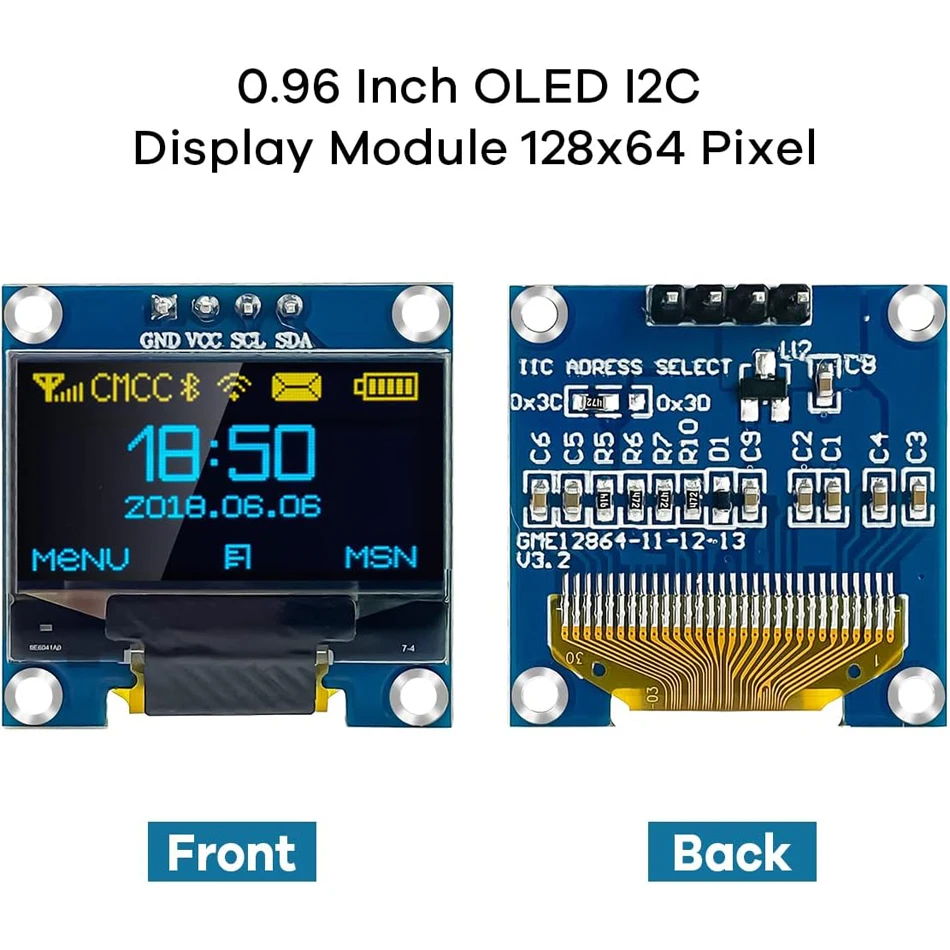
Display text and a running counter on the 0.96-inch 128×64 SSD1306 I2C module. Use this guide for the complete four-pin breakout board, not a bare OLED glass panel or an SPI-only display.
Identify the display before applying power
Read the printed GND and VCC labels on your own module. The product listing notes that pin order can vary between batches. Do not wire the first two pins by their physical position. Also check the controller and resolution: an SH1106 module or a 128×32 panel needs different settings or a different driver.
Prepare the controller
The example controller is an ESP32-C3 Supermini with free, exposed GPIO6 and GPIO7. First confirm that its serial/upload test works. Select ESP32C3 Dev Module and enable USB CDC On Boot for native USB. Open Serial Monitor at 115200 baud. Disconnect power before changing wires.
The example uses 3.3 V power and 3.3 V I2C logic. A breakout advertised for multiple supply voltages does not justify applying a 5 V signal to an ESP32 pin. Keep the first setup to the display and controller only.
Connect the four-pin I2C module
| Module label | ESP32-C3 Supermini | Connection |
|---|---|---|
| VCC / VDD | 3V3 | 3.3 V for this example |
| GND | GND | Common ground |
| SDA | GPIO6 | I2C data |
| SCL | GPIO7 | I2C clock |
These are explicitly assigned GPIO numbers for this C3 example, not physical header positions or universal ESP32 defaults. For another controller, choose free pins from its own pinout and change Wire.begin() in the sketch. Keep the first test on short wires with one peripheral.
Many modules use address 0x3C; some use 0x3D. Confirm the address with a scan before editing the example. The scanner in our SHT4x guide uses the same C3 pin assignment. A responding address proves bus communication, not the display controller model.
Install graphics and display libraries
In Arduino Library Manager install Adafruit SSD1306, Adafruit GFX Library and Adafruit BusIO. Accept the listed dependencies. Create a new sketch, paste the complete example, click Verify, then Upload. Keep a record of your board profile and library versions when reporting an issue.
The constructor below requests 128×64 pixels and uses −1 for a module with no separately exposed reset line. If your display exposes RESET, consult that module's wiring and supply a suitable reset pin instead.
Show text and a live counter
Upload the example and look for the ESP32S Wiki heading and a counter updated every second. The fourth begin() argument is false so the library keeps the Wire pins already initialized by the sketch. display.display() transfers the drawing buffer to the panel.
#include <Arduino.h>
#include <Wire.h>
#include <Adafruit_GFX.h>
#include <Adafruit_SSD1306.h>

Adafruit_SSD1306 display(128, 64, &Wire, -1);
void setup() {
  Serial.begin(115200);
  Wire.begin(6, 7); // SDA, SCL on the ESP32-C3 example board.
  if (!display.begin(SSD1306_SWITCHCAPVCC, 0x3C, true, false)) {
    Serial.println("OLED buffer/init failed.");
    while (true) delay(1000);
  }
  display.clearDisplay();
  display.setTextColor(SSD1306_WHITE);
  display.setTextSize(1);
}
void loop() {
  display.clearDisplay();
  display.setCursor(0, 0);
  display.println("ESP32S Wiki");
  display.println("SSD1306 128x64");
  display.printf("Uptime: %lu s", millis() / 1000UL);
  display.display();
  delay(1000);
}
Change the screen contents
- Change the first printed line, upload again and confirm it appears.
- Keep the cursor within the 128×64 drawing area. At the default text size, leave space between lines.
- Clear the buffer before redrawing a value that can become shorter, otherwise old digits can remain.
- Call display.display() after completing the new frame, not after every individual letter.
The colored yellow/blue version still uses monochrome pixel data; its physical color bands are not an RGB color mode. A 128×64 framebuffer uses 1,024 bytes before other graphics-library state. For a later project, replace the counter with a reading from the AHT20 sensor tutorial.
Troubleshooting
| Symptom | Check next |
|---|---|
| Completely blank panel | Recheck printed power-pin order, detected address, resolution and actual driver chip. |
| begin() succeeds but no picture | Successful allocation/init is not proof that the display acknowledged. Verify the I2C scan and physical connections. |
| Top part only / shifted image | Confirm 128×64 versus 128×32 and SSD1306 versus SH1106. |
| Text drawn in code never appears | Call display.display() to send the buffer. |
| Old digits remain | Clear or overwrite the previous field before updating the frame. |
References and further reading
Related product
Share the product link, hardware revision, software version and any error messages.
Contact ESP32S support →