ESP32-CAM Won’t Upload? Board & Camera Troubleshooting
Fix “No serial data received”, test an ESP32-CAM without its camera, check the USB base and run a first OV2640/OV3660 camera example.
On this page
1. Understand the upload error2. Identify the three separate parts3. Check the USB cable, COM port and baseboard4. Enter download mode manually5. Check power and UART wiring separately6. Read the ESP32 identity before uploading a sketch7. Run a minimal board test without the camera8. Test OV2640 or OV3660 with CameraWebServer9. Decide what needs further testing10. What to send technical support11. Related products and source notes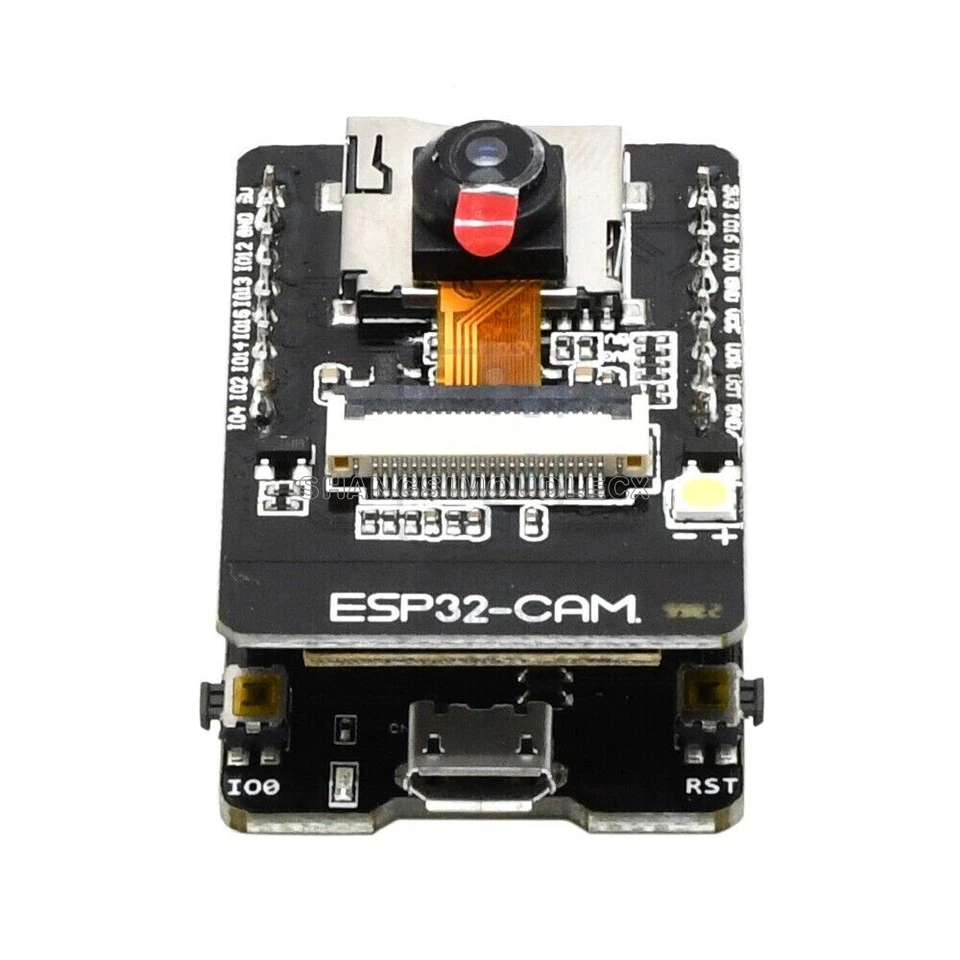
Start here: a red power LED and an upload timeout do not establish that an ESP32-CAM or its camera is faulty. Test the USB connection and ESP32 bootloader first, then a small sketch, and finally the camera.
1. Understand the upload error
Sketch uses 1060417 bytes (33%) of program storage space.
Global variables use 69848 bytes (21%) of dynamic memory.
Serial port COM7:
Connecting......................................
A fatal error occurred: Failed to connect to ESP32: No serial data received.
The size report describes the program built on your computer; it is not evidence that it reached the board. The failure occurs during the connection attempt. Espressif identifies missing serial data as a communication, reset/download-mode or hardware problem. Investigate those paths before changing camera libraries. A camera initialization error occurs later, after firmware has actually started. Official esptool troubleshooting.
2. Identify the three separate parts
| Part | What it does | What its label tells you |
|---|---|---|
| ESP32-CAM controller board | Runs the application and connects to the camera. | Photograph the board model and the complete shield/module marking. “ESP32-S” alone does not identify an ESP32-S3. |
| ESP32-CAM-MB USB base | On a typical two-board kit, provides USB-to-UART programming and board power. | A COM port can identify the USB bridge even when the upper controller board is not responding. |
| OV2640 / OV3660 / OV5640 camera | Captures images through its ribbon connection. | This is the image-sensor model, not the ESP32 chip family. “0v3660” usually means OV3660, with the letter O. |
This guide's GPIO0/GPIO1/GPIO3 instructions apply to the original ESP32 UART-based ESP32-CAM layout. ESP32-S3, XIAO and other camera boards can use different connectors, boot controls and camera pins. Confirm their board documentation before applying that wiring. Do not select a board profile solely because its name contains “CAM”.
3. Check the USB cable, COM port and baseboard
- Unplug the USB device and check which port disappears in Windows Device Manager. Reconnect it and use the port that returns; COM7 is an example, not a permanent assignment.
- Try a known working USB data cable and a direct computer USB port. A charging-only cable can power the LED without providing a data connection.
- If no USB device enumerates, investigate the cable, connector and USB base first. If a USB bridge appears with a driver warning, identify its actual chip, such as CH340 or CP210x, and install the corresponding manufacturer's driver.
- With power disconnected, check that the camera board is fully seated in its USB base, correctly oriented, with both header rows aligned. Remove the microSD card and external GPIO wiring for the initial test.
- Close Serial Monitor and other serial-terminal applications before uploading. Only one application should use the COM port for this test.
If the detachable USB base is suspect, cross-testing with a known working, compatible base helps distinguish a baseboard problem from an ESP32-CAM problem. Do not force a different connector or pin arrangement.
Driver and port reference: Espressif serial connection guide.
4. Enter download mode manually
For a board with a documented BOOT/IO0 button, hold it, press and release RESET/EN, start the upload, then release BOOT after the connection is established. Button functions differ between USB bases: do not assume an unlabeled button is BOOT.
For a confirmed original ESP32-CAM board without a usable BOOT button:
- Disconnect power. Connect the board's GPIO0 / IO0 pin to GND.
- Reconnect power and press RESET, or power-cycle if no reset button is provided. GPIO0 must be low when reset is released.
- Start the upload at 115200 baud. If it remains at
Connecting..., press and release RESET once while the GPIO0-to-GND connection remains in place. - After a successful upload, disconnect power, remove the GPIO0-to-GND jumper, then power up/reset again to run the sketch.
Keep GPIO2 floating or low during entry to the original ESP32 downloader; external hardware holding it high can interfere. Avoid adding connections to other strapping pins while diagnosing the board. See Espressif's ESP32 boot-mode reference. This jumper procedure is not a universal pinout for every ESP32-S3 camera board.
5. Check power and UART wiring separately
The ESP32 chip uses a regulated 3.3 V supply. A development board may accept 5 V through its USB connector or a specifically documented 5V input because it has a regulator. Verify the board's input specification; a camera ribbon connector is not a power-input connector. ESP32 hardware power requirements.
Board power voltage and UART signal voltage are different: use 3.3 V UART logic. Do not apply a 5 V TX signal to an ESP32 RX pin. A USB-to-UART adapter's voltage jumper may select its power output without changing its signal levels; check the adapter documentation.
If bypassing the USB base with an external USB-to-UART adapter, use the following only for a confirmed original ESP32-CAM UART0 layout. Make all wiring changes with power off.
| Connection | Original ESP32-CAM board |
|---|---|
| Adapter GND and power-supply GND | GND: all grounds must be common. |
| Adapter TX, using 3.3 V logic | U0R / RX0 / GPIO3. |
| Adapter RX | U0T / TX0 / GPIO1. |
| Board power | Use its documented regulated input. Use 5 V only if that exact board has a suitable 5V input and regulator. |
| Download-mode selection | GPIO0 to GND during reset; remove for normal operation after uploading. |
For this bypass test, disconnect the USB base and use one intended board power source. Do not parallel supply outputs or rely on a small adapter's weak 3.3 V regulator to power the whole camera board. A multimeter reading near 3.3 V on the board's 3V3 rail can help, but a steady reading alone cannot rule out short power dips. Power-related esptool failures.
6. Read the ESP32 identity before uploading a sketch
These esptool commands query the chip and attached flash; they do not erase or write your application. Close Serial Monitor and enter download mode first. With a standalone esptool installation on Windows, replace COM7 with your actual port:
py -m esptool --port COM7 --baud 115200 read-mac
py -m esptool --port COM7 --baud 115200 flash-id
If your Python launcher uses python instead of py, substitute that command. Standalone esptool can be installed with py -m pip install esptool. This creates a separate command-line installation; do not manually replace the esptool bundled inside Arduino or ESP-IDF. Official installation instructions.
The commands above use esptool v5 spellings, matching the v5 upload log. Older v4 installations use read_mac and flash_id. Use your installation's --help if necessary. If connection is unreliable, retry at --baud 9600. Each command may require re-entering download mode.
| Result | What it establishes |
|---|---|
| Chip identity and MAC address are returned | The ROM downloader and serial communication respond. This does not test the camera, PSRAM, every GPIO or Wi-Fi. |
| Flash manufacturer/device information is returned | The downloader can communicate with the flash device. It is not a complete flash-memory endurance test. |
| Still no serial data | Continue checking USB/UART, reset, boot selection and power. A flash erase cannot fix a connection that has not been established. |
Command details: esptool read-mac and flash-id. To inspect boot output, open a serial terminal at 115200 baud, reset the board, save the text, then close the terminal before running esptool again. Normal boot and download boot produce different messages.
7. Run a minimal board test without the camera
After the read-only connection test works, upload this small Arduino sketch. Uploading replaces the current application, so preserve any firmware you need first. This test needs no camera library, Wi-Fi credentials or GPIO LED assignment.
#include <Arduino.h>

void setup() {
  Serial.begin(115200);
  delay(1000);
  Serial.println("ESP32 board test started");
}

void loop() {
  Serial.printf("ESP32 alive: %lu ms\n", (unsigned long)millis());
  delay(1000);
}- Install/select Espressif's Arduino ESP32 board package and the exact board or matching chip-family profile. Select AI Thinker ESP32-CAM only for a board confirmed to use that layout.
- Set the correct port and try 115200 upload speed. Do not randomly change flash size, partition layout or PSRAM mode to solve a missing serial connection.
- Upload in download mode. Return the board to normal boot, reset, then open Serial Monitor at 115200 baud. Expect one
ESP32 aliveline each second. - On an ESP32-S3 using native USB, follow that board's USB configuration. USB CDC and UART0 are different output paths, and the COM port can change after reset. A blank monitor on the wrong path is not proof of a dead chip.
The Arduino Tools menu guide explains board, upload speed, memory and USB options. The sketch above deliberately avoids the bright camera flash LED; successful periodic output is enough for this first application test.
If you need to isolate the camera electrically, disconnect power before unlatching its ribbon cable and leave the connector secure. Only do this if you can identify and operate that connector correctly. Repeat the board test with the camera disconnected; reconnect it only with power off.
8. Test OV2640 or OV3660 with CameraWebServer
Once the simple sketch uploads and runs, open the official CameraWebServer example in the installed ESP32 Arduino package. Use its complete example folder, including the accompanying configuration and camera-pin files. Select exactly one camera-board definition matching your board and enter your 2.4 GHz Wi-Fi credentials.
Recent upstream examples select the board in board_config.h; older versions may put the selection in the main sketch. For a verified AI-Thinker pin layout, that definition is CAMERA_MODEL_AI_THINKER. Other boards need their own pin map. Follow the example bundled with your installed core rather than mixing files from different releases. Official CameraWebServer example.
Use the board's documented PSRAM settings and a partition that fits the example. After uploading and restarting normally, read the serial log: if camera initialization succeeds and Wi-Fi connects, the example prints a local HTTP address. Open that address from a device on the same network and start the stream. Begin at a modest image size rather than maximum resolution.
OV3660 is supported by Espressif's camera driver, but the sensor name alone does not establish board compatibility. The driver lists ESP32, ESP32-S2 and ESP32-S3 targets. Verify connector pin assignment, ribbon contact orientation, required power rails and the exact board/sensor combination. Matching 24-pin connectors alone is insufficient; do not treat every camera module as interchangeable. PSRAM and image-buffer requirements also depend on the selected format and size. Official esp32-camera driver and supported sensors.
If the board test works but the camera example reports a probe or initialization error, check the camera-board definition and unpowered ribbon seating first. To distinguish sensor failure from a connector/host fault, cross-test a known compatible sensor or host board. Change one part at a time.
9. Decide what needs further testing
| Observation | Next action |
|---|---|
| Only the red LED lights | Check enumeration, power rails and download-mode entry. LED status alone does not identify the failed part. |
| ROM responds and the board-test sketch runs | The ESP32 can execute a basic application. Move on to the camera, memory and application configuration. |
| Works with the camera disconnected, fails when connected | Investigate ribbon alignment, power loading, sensor compatibility and connector damage before condemning the ESP32. |
| Works with another compatible USB base or adapter | Investigate the original base, cable, header contacts or reset circuit. |
| No bootloader response with verified power, correct boot selection and a known working UART path | A controller-board fault becomes more plausible. Request a hardware inspection or support assessment; the timeout alone is not conclusive. |
10. What to send technical support
Please include the order/product link, clear front/back photos of the controller and USB base, the camera ribbon marking, USB bridge chip, board profile, Arduino core version, selected COM port and the complete error log. Tell us whether read-mac and flash-id worked and whether the minimal sketch ran. Keep passwords and other private credentials out of screenshots.
A short reply you can use: “Your sketch compiled, but the upload failed before the computer established communication with the ESP32. The red LED only shows that power reaches the indicator circuit. Please check the data cable and COM port, then try the boot/reset procedure for your exact board. We can test the ESP32 separately from the camera using a small serial-output sketch. Please send photos of both boards and the complete module marking so we can confirm the correct procedure.”
11. Related products and source notes
Use the product links below to identify your hardware. They are not a claim that all listed sensors and boards share the same pinout.
- ESP32-CAM with ESP32-CAM-MB USB base
- ESP32-S3 camera controller board (different board configuration)
- OV3660 camera module
- OV3660 camera module: alternative lens options
- OV3660 module with 75 mm ribbon
- OV2640 camera module
- OV5640 camera module
Documentation reviewed October 17, 2026. This guide was checked against the official sources linked throughout; it has not been validated on a physical sample of every product revision. No customer-identifying inquiry details are reproduced.
Share the product link, hardware revision, software version and any error messages.
Contact ESP32S support →