1.54-inch NFC Tag: Phone Setup & Image Updates
Update the DMPL0154FN1 four-color tag from a compatible phone, prepare images and troubleshoot NFC transfer failures.
On this page
Confirm the tag and phone compatibilityGet the correct applicationPrepare an imageUpdate the tag by NFCTroubleshoot failed updatesChoose the right architectureReferences and support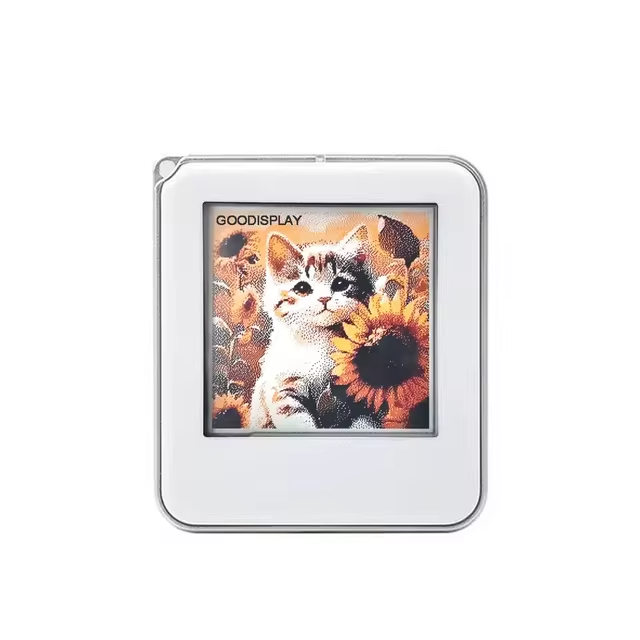
Confirm the tag and phone compatibility
This guide covers the DMPL0154FN1 1.54-inch 200×200 four-color NFC-powered tag offered in this listing. It is not a bare SPI display, a Bluetooth badge or a universal NFC storage tag. The listed variant uses an Android app workflow; do not infer iOS support from another revision or manufacturer listing.
The current ESP32S listing flags Samsung and Google Pixel compatibility limitations. Treat that notice as a purchase check for this supplied variant and app, not proof that every model in a phone brand behaves identically. Confirm the phone model, OS version, tag revision and matching app before purchase.
Get the correct application
- Read the model printed on the package and the supplied setup sheet.
- Use the manufacturer’s DMPL0154FN1 app resource or the verified link supplied with your order. Do not select a generic NFC reader app and assume it implements the display-update protocol.
- Install the compatible Android release and enable NFC in the phone’s settings. Grant only the permissions needed for the workflow.
- Record the app version and phone model so that support can reproduce a failure.
The manufacturer resource is linked below. Its files and app versions can change; we do not host an unverified APK mirror.
Prepare an image
- Create a square 200×200 composition with large text and clear contrast.
- Import it into the matching app, crop it and use the app’s supported palette/conversion preview.
- For a first test, choose simple black text and solid areas rather than a detailed photograph.
The physical palette is black, white, red and yellow. A full-color source photo is converted to that palette; it will not reproduce like an LCD. Leave room around text so that cropping does not remove important information.
Update the tag by NFC
- Remove thick or metallic phone accessories that obstruct coupling, and locate the phone’s NFC antenna area.
- Open the app’s model-appropriate image-update action, then align the phone with the tag’s NFC area.
- Keep phone and tag stationary throughout the transaction and any instructed display-update period. The display may pass through intermediate colors.
- Wait for the app’s completion indication before moving the phone. Check the final image, not just the initial NFC detection notification.
- Repeat with one small content change to confirm that the workflow is reproducible.
This tag receives update energy through NFC; no battery is required for the intended image-update workflow. Image retention afterwards does not mean that a weak NFC field can complete an update.
Troubleshoot failed updates
| Symptom | Check |
|---|---|
| Phone cannot detect the tag | NFC enabled, correct antenna position, case thickness, compatible phone/app/tag combination. |
| Tag detected but update fails | Correct model selected in the app, stable positioning and adequate NFC coupling. |
| Part of the new image remains missing | Repeat a complete supported update; do not assume the old retained image means the transfer finished. |
| Photo colors look different | Four-color conversion, contrast, cropping and preview settings. |
If a repeatable update still fails, send support the phone model, Android version, app version, tag marking, error text and a description of the alignment used.
Choose the right architecture
Use this tag for content updated by a person with a compatible phone. A live Wi-Fi sensor dashboard requires a different controller/display architecture. Do not wire an ESP32 to the finished tag or expect a generic SPI sketch to control it without a documented hardware interface.
References and support
Reviewed October 15, 2026. This is an original ESP32S integration guide based on the listed documentation; it has not been tested on a physical unit here. Match the supplied hardware revision before using a driver or firmware image.
See the e-paper setup and troubleshooting basics and firmware flashing guide. For support, send the product link, panel/PCB markings, software version, wiring and serial log.
Share the product link, hardware revision, software version and any error messages.
Contact ESP32S support →