ESP32 E-Paper Partial Refresh: Full Updates & Ghosting Fixes
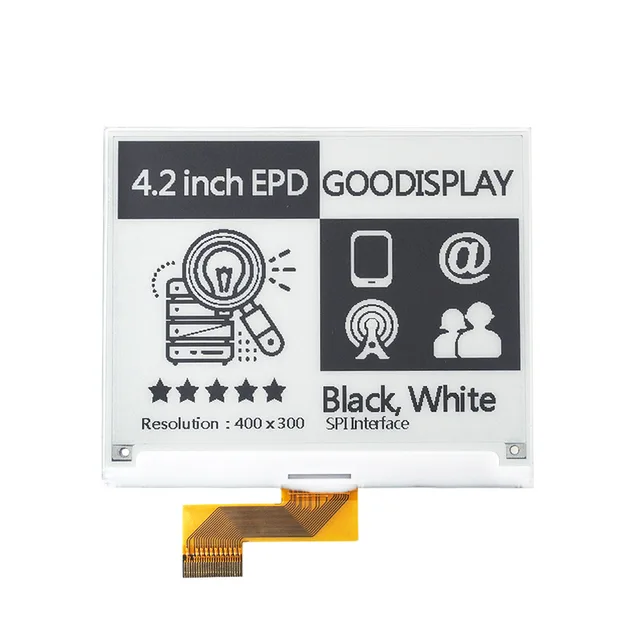
Compare full, fast and partial e-paper updates. Diagnose residual digits, initialization after wake and panel-specific driver requirements.
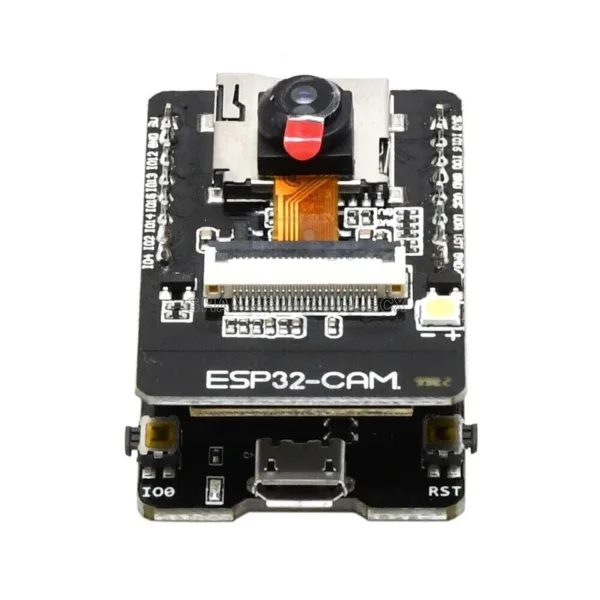
This tutorial covers the essential steps to flash your first program and use the integrated OLED screen.
Before starting, you need to configure the Arduino IDE for the ESP32-S3 board.
Install ESP32 Core:
Go to File > Preferences (or Arduino > Preferences on macOS).
In the Additional Board Manager URLs field, add the following link:
https://raw.githubusercontent.com/espressif/arduino-esp32/gh-pages/package_esp32_index.json
Go to Tools > Board > Board Manager...
Search for esp32 and install the esp32 by Espressif Systems package.
Select the Board:
Go to Tools > Board > ESP32 Arduino.
Select ESP32S3 Dev Module.
Connect: Plug the board into your computer using a USB-C data cable.
Select Port:
Go to Tools > Port and select the port that corresponds to the ESP32-S3 board (it may appear as USB JTAG/Serial or a similar name).
Board Settings (Tools Menu):
USB CDC On Boot: Set to "Enabled" (This allows the USB-C port to be used for both programming and Serial Monitor output).
Flash Mode: Generally, the default "QIO" or "DIO" is fine.
Flash Size: Check your board's specifications (usually 4MB or 8MB), and select the appropriate size.
The 0.42-inch OLED likely uses the SSD1306 controller and communicates via I2C.
Go to Sketch > Include Library > Manage Libraries...
Search for Adafruit SSD1306.
Install the Adafruit SSD1306 library.
The 0.42-inch display usually has a resolution of 72x40 pixels and uses I2C. The default connection pins on this type of board are often GPIO5 (SDA) and GPIO6 (SCL), with an I2C address of 0x3C.
Copy and paste this example code into a new Arduino sketch:
#include <Wire.h>
#include <Adafruit_GFX.h>
#include <Adafruit_SSD1306.h>
// 0.42 inch OLED is often 72x40, using I2C
#define SCREEN_WIDTH 72
#define SCREEN_HEIGHT 40
// I2C pins for this board are typically GPIO5 (SDA) and GPIO6 (SCL)
#define OLED_SDA 5
#define OLED_SCL 6
#define OLED_RESET -1 // Not used, set to -1
Adafruit_SSD1306 display(SCREEN_WIDTH, SCREEN_HEIGHT, &Wire, OLED_RESET);
void setup() {
Serial.begin(115200);
// Initialize I2C (Wire) with custom pins
Wire.begin(OLED_SDA, OLED_SCL);
// Initialize the display with the I2C address 0x3C
if(!display.begin(SSD1306_SWITCHCAPVCC, 0x3C)) {
Serial.println(F("SSD1306 allocation failed"));
for(;;);
}
// Clear the display buffer
display.clearDisplay();
// Set text size, color, and position
display.setTextSize(1);
display.setTextColor(SSD1306_WHITE);
display.setCursor(0, 0);
// Write the text
display.println("ESP32-S3");
display.println("Ready!");
display.println("WiFi/BTLE");
// Show the display buffer on the screen
display.display();
}
void loop() {
// Your main loop code goes here
}
Click the Upload arrow button (→) in the Arduino IDE.
The IDE will compile and upload the sketch to the ESP32-S3.
Once the upload is complete, the "ESP32-S3 Ready!" message should appear on the small OLED screen!
Setting up the Wi-Fi on your ESP32-S3 board with the Arduino IDE is straightforward using the built-in libraries.
Make sure you have completed the following from the previous tutorial:
Arduino IDE installed and the ESP32 Core installed via the Board Manager.
Board set to "ESP32S3 Dev Module".
The correct Port selected.
Copy and paste the following code into a new Arduino sketch. Crucially, replace "YOUR_SSID" and "YOUR_PASSWORD" with the actual name and password of your 2.4 GHz Wi-Fi network.
C++
#include <WiFi.h>
// ⚠️ Replace with your Wi-Fi credentials
const char* ssid = "YOUR_SSID";
const char* password = "YOUR_PASSWORD";
void setup() {
Serial.begin(115200);
delay(100);
Serial.print("Connecting to Wi-Fi network: ");
Serial.println(ssid);
// Start the Wi-Fi connection attempt
WiFi.begin(ssid, password);
// Wait for connection to succeed
while (WiFi.status() != WL_CONNECTED) {
delay(500);
Serial.print(".");
}
Serial.println("");
Serial.println("✅ Wi-Fi Connected!");
Serial.print("IP Address: ");
Serial.println(WiFi.localIP()); // Prints the assigned IP address
}
void loop() {
// Check the connection status every few seconds
if (WiFi.status() != WL_CONNECTED) {
Serial.println("Connection lost. Reconnecting...");
// Attempt to reconnect
WiFi.reconnect();
}
// Your main code, like fetching data or serving a web page, goes here.
delay(5000);
}
Upload: Click the Upload arrow button in the Arduino IDE to flash the code to your ESP32-S3 board.
Monitor: Once the upload is complete, open the Serial Monitor (Tools > Serial Monitor or $Ctrl+Shift+M$ on Windows/Linux) and set the baud rate to 115200.
You will see the board print Connecting to Wi-Fi network: [YOUR_SSID] followed by a series of dots (....). When the connection is successful, it will print:
✅ Wi-Fi Connected!
IP Address: 192.168.x.x
Your ESP32-S3 is now connected to your local network and ready for IoT projects!
ESP32-CAM-MB MICRO USB ESP32 Serial to WiFi ESP32 CAM Development Board CH340 CH340G 5V Bluetooth+OV2640 Camera
Heltec LoRa 32 V4 Meshtastic Dev-Board 27dBm Low Power Solar GPS ESP32 SX1262 Support WiFi BLE for IoT Mesh LoRa With Antenna
$36.90
MIJIA AI Intelligent Interactive Robot Dog Voice Recognition Expression Management Action Sing Dance Multifunctional Robot Dog
$33.90
0.28 Inch 2.5V-40V Mini Digital Voltmeter Voltage Tester Meter Red/Blue/yellow/green LED Screen Electronic Parts Accessories
Excellent Esp32-Aduio-Kit Wifi+ Bluetooth Module Esp32 Serial To Wifi / Esp32-Aduio-Kit Audio Development Board With Esp32-A1S

Compare full, fast and partial e-paper updates. Diagnose residual digits, initialization after wake and panel-specific driver requirements.

Identify the CYD board and LCD controller before changing drivers. Follow a repeatable display test and separate LCD faults from touch configuration.
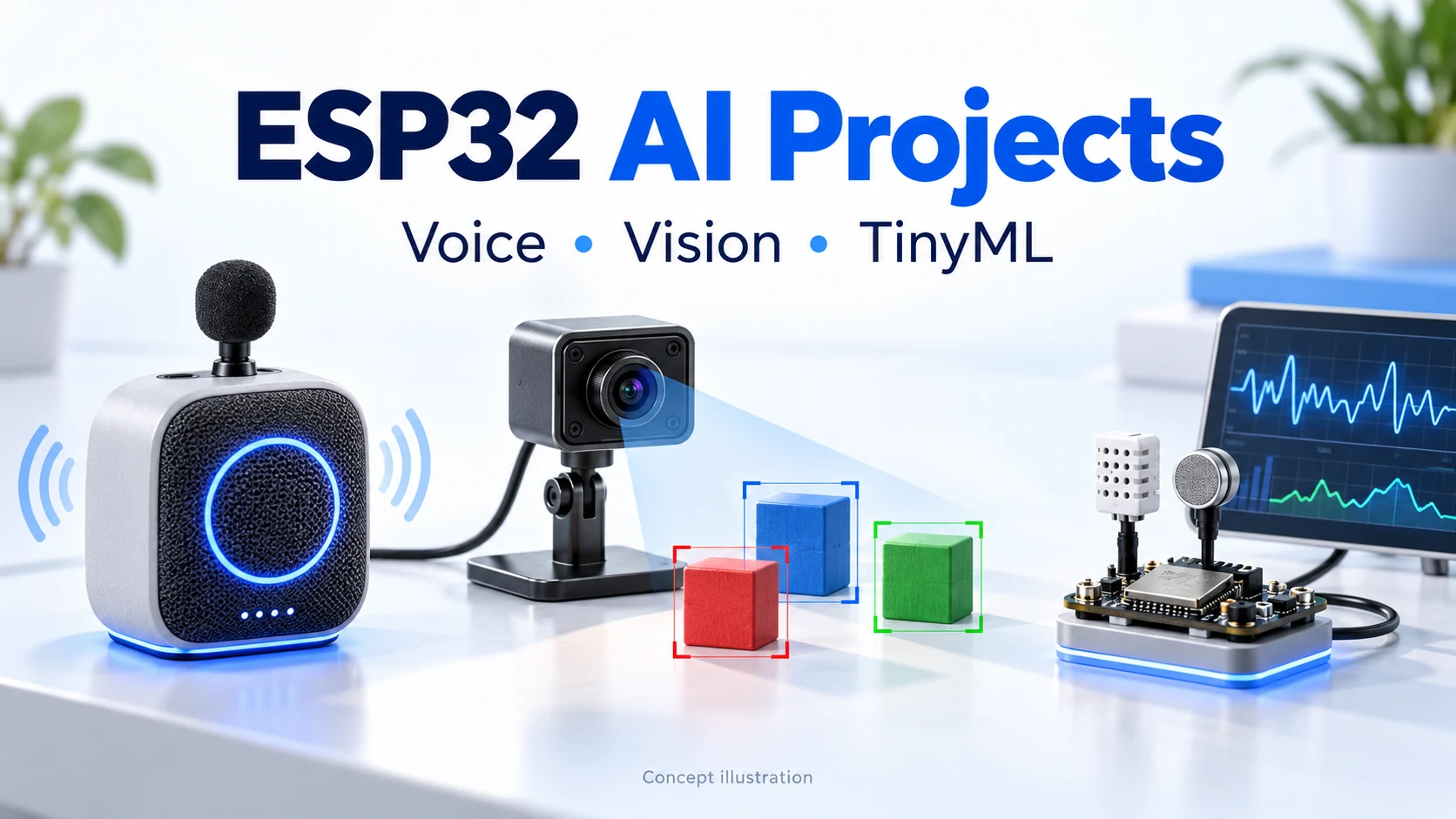
Explore XiaoZhi, ElatoAI, ESPHome, ESP-SR, ESP-WHO, ESP-Detection, Edge Impulse and SenseCraft AI. Compare hardware, local inference and backend requirements before your first build.
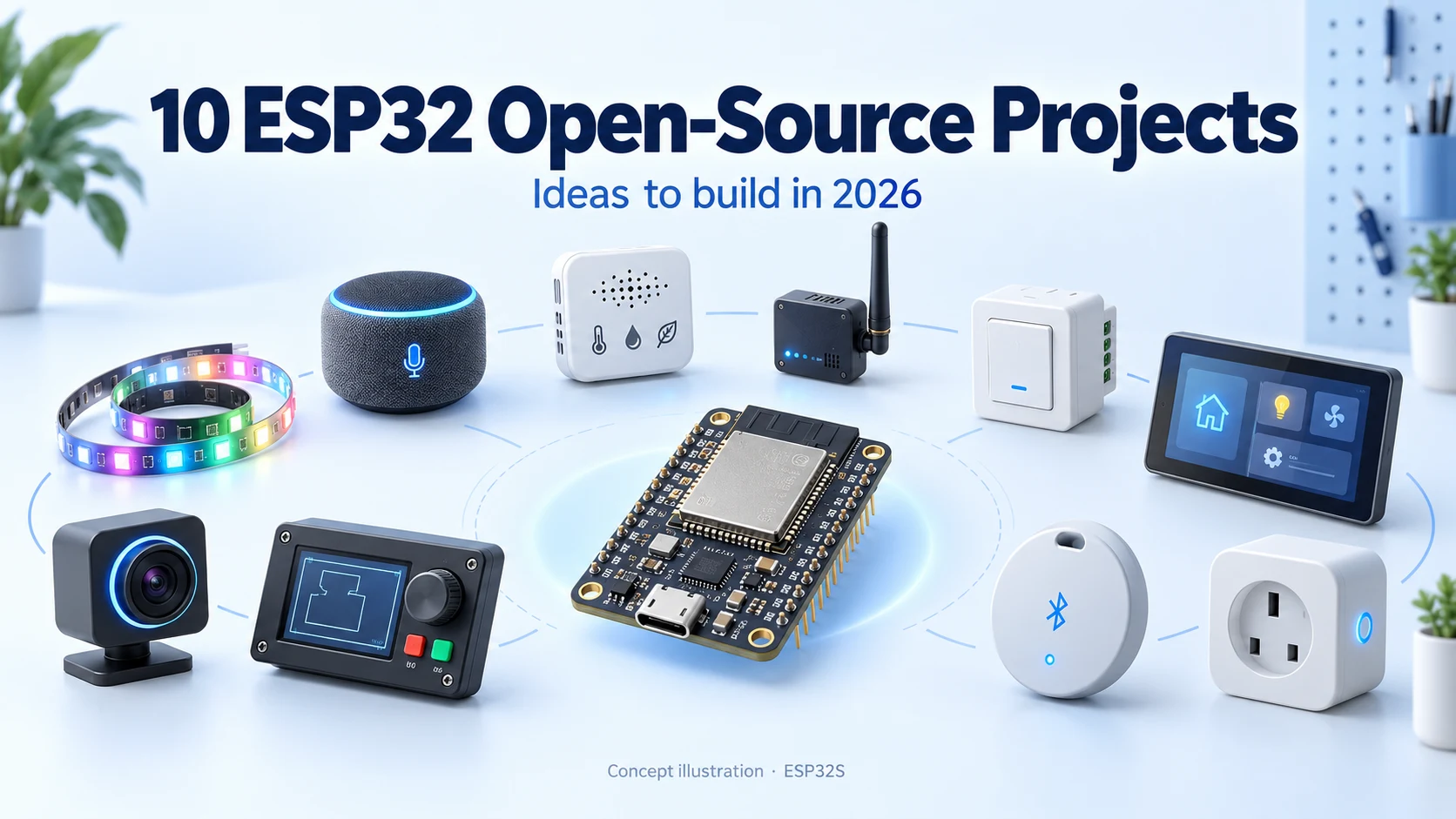
Discover ten active ESP32 open-source projects for 2026, from XiaoZhi AI and WLED to ESPHome, Meshtastic and touchscreen control. Includes GitHub popularity, hardware considerations and first-build ideas.
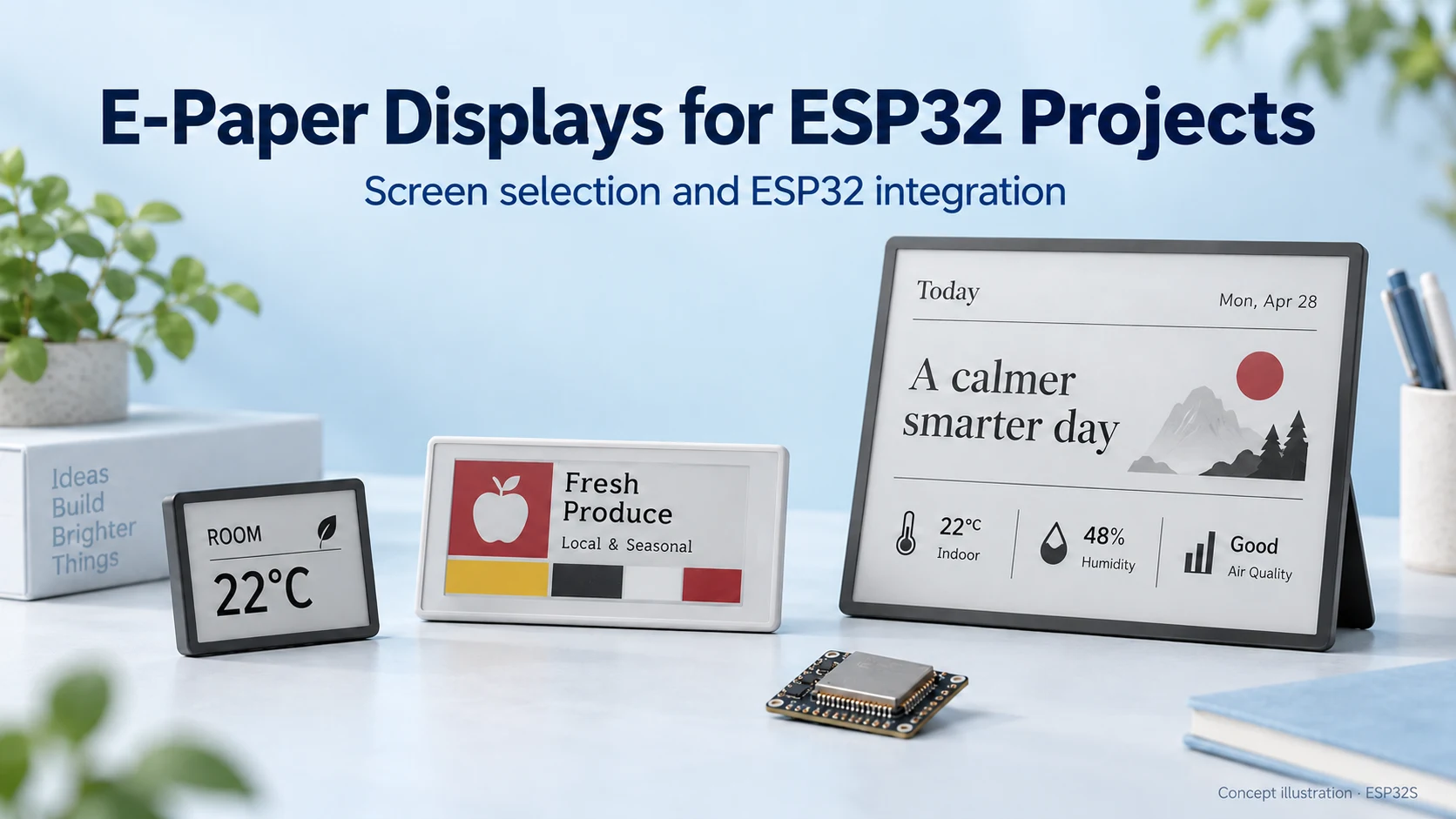
Choose an e-paper display for your ESP32 project: compare screen types, raw panels and modules, refresh modes, memory needs and power considerations.
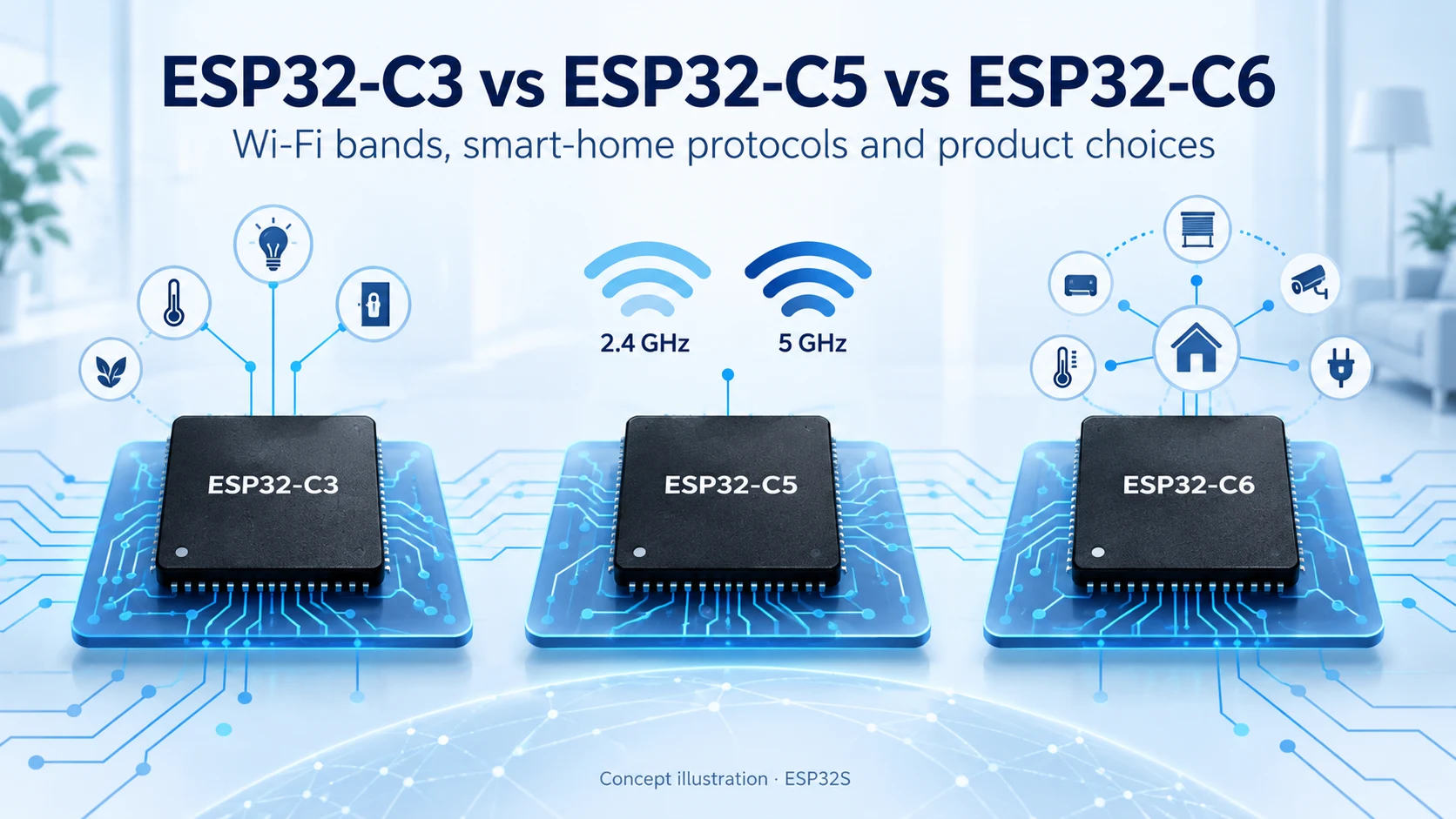
Compare ESP32-C3, ESP32-C5 and ESP32-C6 for Wi-Fi bands, Bluetooth LE, Thread, Zigbee, memory and Matter product design. Find the right connectivity for your project.