
ESP32 E-Paper Guide: Wiring, GxEPD2 & Low Power
An ESP32 e-paper project needs a compatible panel, driver board and software configuration. Start with the panel model and controller, then choose the image format, refresh behavior and power arrangement. Screen diagonal alone is not enough to select a driver.
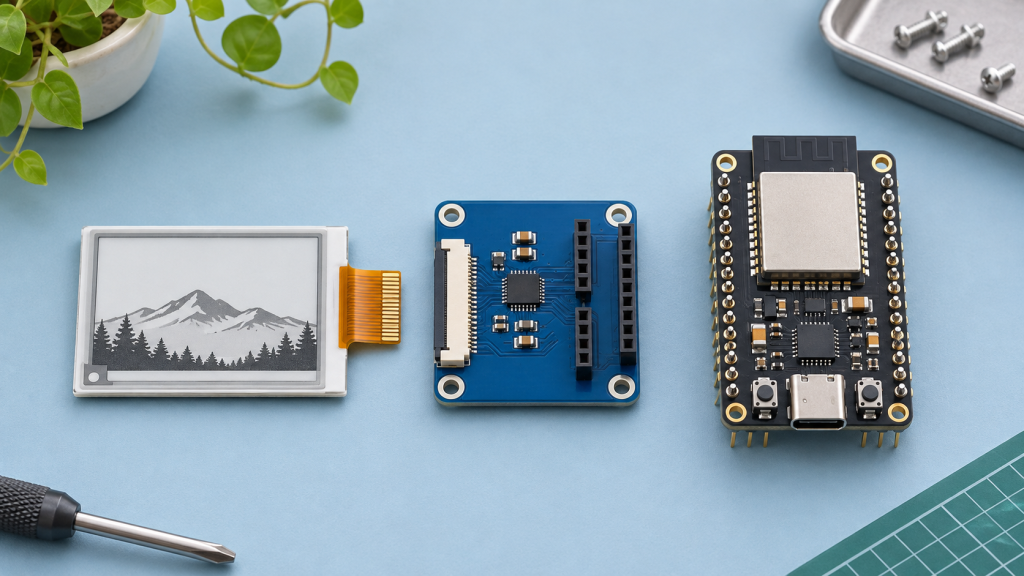
ESP32 e-paper panel and adapter matching table
Use the part number on the flex cable to choose the software class. For raw panels, check that the chosen product option includes a matching adapter or source one separately.
| Panel | Controller / software | Connection to verify | Setup |
|---|---|---|---|
| 1.54-inch GDEH0154D67, 200 × 200 B/W | SSD1681 / matching GxEPD2 class | Compatible SPI adapter for this exact panel | 1.54-inch setup |
| 2.9-inch GDEY029T94, 296 × 128 B/W | SSD1680 / GxEPD2_290_GDEY029T94 | Compatible SPI adapter with documented logic levels | 2.9-inch wiring and first image |
| 4.2-inch GDEY042T81, 400 × 300 B/W | SSD1683 / GxEPD2_420_GDEY042T81 | Compatible SPI adapter for the exact FPC | 4.2-inch wiring and first image |
| XIAO 7.5-inch ePaper | Use the documented panel and board combination | Verify the specific XIAO driver-board revision and panel | 7.5-inch setup |
Compare package contents before ordering, especially for same-size color and monochrome variants. Browse e-paper screens · Partial refresh and ghosting guide.
Quick selection: what are you building?
| Project | Useful characteristics | Check first |
|---|---|---|
| Sensor label or desk status display | Small monochrome panel and simple text layout | Supported controller, connector and update schedule |
| Calendar or dashboard | Larger readable layout | Framebuffer requirements, supported firmware and enclosure |
| Color information sign | Panel with the required color set | Exact driver support and acceptable full refresh behavior |
| Battery-powered display | Board with controllable peripherals and suitable sleep behavior | Measured complete-system power, not only the ESP32 chip specification |
1. Match the panel, adapter and library
Record the panel part number, resolution, color type and board revision. A bare FPC panel and a module with an SPI driver board are different products. Do not connect a bare panel directly to ESP32 GPIOs based only on a similar-looking module tutorial.
GxEPD2 supports many SPI e-paper displays, but the display class must match supported hardware. Use the library's examples and supported-display list, then compare them with the product-specific tutorial. A different controller can require a different class even when the screen size is the same.
2. Follow model-specific wiring
Use the matching guide for power, ground, SPI and control signals. Keep the display's DC, RESET and BUSY connections distinct from the SPI data and clock signals unless the actual schematic specifies otherwise. Confirm logic levels and supply requirements from the module documentation.
These guides provide a starting point for the products identified in their titles:
- 1.54-inch E-Paper: ESP32 Setup & Troubleshooting
- 2.9-inch E-Paper: GDEY029T94 / ESP32
- 4.2-inch E-Paper: GDEY042T81 / ESP32
- XIAO 7.5-inch ePaper: Setup & Dashboards
The 1.54-inch guide includes model checks; it is not a promise that every 1.54-inch display uses the same driver.
3. Bring up one image before networking
- Start with the matching library example and a simple text or test pattern.
- Confirm orientation, resolution and the complete image area.
- Check that initialization and BUSY handling complete normally.
- Only then add Wi-Fi, sensor readings, API requests or an application dashboard.
This sequence separates display configuration errors from application and network problems.
4. Understand full and partial refresh
Refresh capabilities vary by panel and driver. Do not assume that partial refresh is available on every monochrome or color screen. Follow the panel's recommended update sequence and operating conditions. Periodic full refresh can be part of a ghosting-management strategy where supported.
E-paper is useful for information that changes less often than a conventional animated UI. Choose an LCD or OLED when continuous animation is a core requirement.
5. Plan and measure system power
An image can remain visible without continuous image refresh, but the complete device may still draw power through the ESP32, regulator, adapter, indicator LEDs or other peripherals. Treat chip-level sleep figures separately from whole-board measurements.
Measure the current during boot, Wi-Fi connection, data fetch, display update and sleep. Estimate consumption for the actual update interval, then account for battery capacity, conversion losses and operating conditions. Any runtime estimate should state its assumptions; this guide does not claim a universal battery life or field-test result.
6. Troubleshooting checklist
| Symptom | Check |
|---|---|
| Blank or incomplete image | Panel identity, display class, wiring, power and successful initialization. |
| BUSY timeout | BUSY pin connection, reset sequence, supply and matching driver. |
| Image rotated or clipped | Resolution, rotation and framebuffer dimensions. |
| Ghosting after repeated updates | Supported refresh modes and the manufacturer's recommended full-refresh cycle. |
| Battery drains quickly | Whole-board current, network retries, wake interval and peripherals that remain powered. |
10 practical project ideas
- Room temperature and humidity label
- Desktop calendar
- Weather summary
- Home Assistant status panel
- Meeting-room availability sign
- Equipment maintenance reminder
- Parcel or order status display
- Public transport departure summary
- Battery sensor dashboard
- Personal task list
These are project ideas, not reports of completed deployments. Check the data source, offline behavior and update requirements before selecting hardware.
Products and complete display platforms
Browse e-paper screens and modules or compare the 2.9-inch module, the 4.2-inch module and the XIAO 7.5-inch panel. Match the selected product to its Wiki rather than copying a generic pin list.
Sources and version references
Related guide: Partial refresh and ghosting: panel-specific checks.
Continue by task
- Choose hardware: screen and package selection or browse e-paper displays.
- Initialization fails: blank screen and BUSY checks.
- Buffer is too large: framebuffer memory and paged drawing.
- Plan a battery device: measure the complete power budget.